To set up your smart refrigerator, first unpack it carefully and place it in a well-ventilated spot. Plug it in, turn it on, and follow the on-screen or app instructions to connect to Wi-Fi. Update the firmware if needed, then customize the temperature and zones. Activate smart features like cameras or voice control, and set alerts for maintenance. Keep exploring these options to get the most out of your smart fridge’s capabilities—more helpful tips await you.
Key Takeaways
- Carefully unpack the fridge, position it with proper airflow, and plug it in to ensure it powers on successfully.
- Connect the refrigerator to Wi-Fi using the display or app, and log into your user account for remote access.
- Update firmware if prompted, then set temperature preferences and customize zones for optimal food preservation.
- Activate smart features like internal cameras, voice control, and inventory management through the app or control panel.
- Manage notifications, perform firmware updates, and adjust settings via the app to maximize performance and convenience.
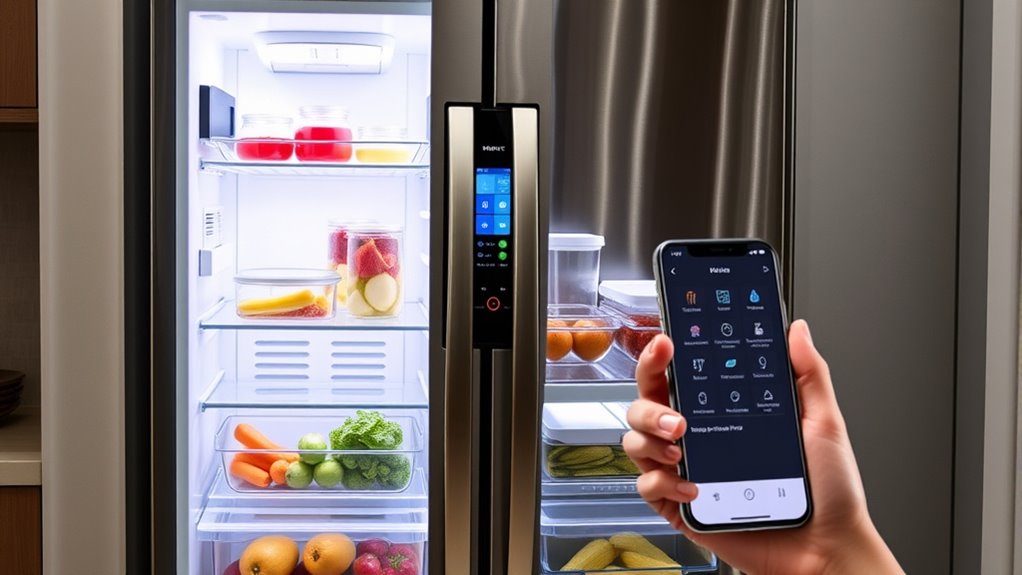
Setting up a smart refrigerator can seem intimidating, but with a few simple steps, you’ll have it running smoothly in no time. First, unpack your fridge carefully, making sure to remove any protective packaging and securing accessories. Place it in your desired spot, leaving enough space around it for ventilation—usually a few inches on each side. Once in position, plug it in and turn it on. Most smart fridges have a display or control panel that lights up once powered, indicating they’re ready for setup.
Next, connect your refrigerator to your Wi-Fi network. Follow the manufacturer’s instructions, which usually involve steering through the display menu or using a companion app on your smartphone. Make sure your Wi-Fi signal is strong where you place the fridge; a weak connection can cause issues with syncing features. Once connected, the fridge may prompt you to create or log into a user account. This step is essential, as it enables remote control and access to features like inventory management, recipe suggestions, or grocery ordering.
Connect your smart fridge to Wi-Fi using the display or app for seamless feature access.
After establishing the connection, update the fridge’s firmware if prompted. Manufacturers often release updates to improve performance and add new features, so it’s worth ensuring your device runs the latest software. Then, explore the app or control panel to customize your settings. Set your temperature preferences for the refrigerator and freezer compartments, usually between 37-40°F for the fridge and 0°F for the freezer. Some models also allow you to set specific zones for different food types, helping keep produce fresh longer.
Many smart fridges come with features like cameras inside that let you see what’s inside without opening the door. To use this, follow the app’s instructions to activate and sync the cameras. Keep in mind that some features, such as voice control or integration with other smart home devices, require linking your fridge to platforms like Alexa or Google Assistant. Follow the app’s prompts to authorize these connections safely. Additionally, integrating your smart refrigerator with other home automation systems can enhance its functionality and streamline your kitchen management.
Finally, familiarize yourself with the main functions and notifications. For example, you might set alerts for when the door is left open or when certain items are running low. Some fridges can even suggest recipes based on your current inventory, or help you create shopping lists. Regularly check the app for firmware updates and new features, and tweak your settings as needed to optimize performance. With everything set up, you can now enjoy the convenience and smart features your refrigerator offers, making everyday kitchen tasks simpler and more efficient.

GoveeLife WiFi Refrigerator Thermometer with Alarm, Wireless Digital Freezer Temperature Gauge with App, 2 Years Free Data Export, for Home Kitchen Fridge Hot Tub 2 Pack(Only Support 2.4G Wi-Fi)
Smart 3-Way Alerts & Remote Temperature Monitoring:Get instant app notifications, email alerts, and buzzer alarms when temperatures exceed…
As an affiliate, we earn on qualifying purchases.
As an affiliate, we earn on qualifying purchases.
Frequently Asked Questions
How Do I Connect My Smart Refrigerator to Wi-Fi?
To connect your smart refrigerator to Wi-Fi, first verify it’s powered on. Open the fridge’s control panel or settings menu, then navigate to the Wi-Fi or network options. Select your Wi-Fi network from the list, enter your password, and confirm the connection. Once connected, the fridge may run a brief test. You can now control and monitor your refrigerator remotely through its app or interface.
Can I Control the Refrigerator Remotely via a Smartphone App?
Yes, you can control your smart refrigerator remotely via a smartphone app. Simply download the app designated for your fridge model, log in with your account, and make sure your refrigerator is connected to Wi-Fi. Once set up, you can adjust temperature settings, check inventory, and even receive alerts from anywhere. This makes managing your fridge convenient and ensures you stay updated on its status at all times.
What Are the Security Features to Protect My Smart Fridge?
Your smart fridge includes security features like encrypted Wi-Fi connections and user authentication to keep your data safe. You should enable two-factor authentication if available, update the firmware regularly, and use a strong, unique password. Additionally, setting up a separate Wi-Fi network for your smart devices helps isolate potential threats. Regularly monitor your fridge’s activity logs to catch any suspicious access attempts and stay proactive about security.
How Do I Update the Refrigerator’s Firmware or Software?
You can update your smart refrigerator’s firmware or software through its companion app or touchscreen interface. First, connect your device to Wi-Fi, then navigate to the settings menu and select “Software Update” or “Firmware Update.” If an update is available, follow the prompts to download and install it. Make sure your refrigerator stays powered on during this process to guarantee a smooth update.
Is There a Way to Troubleshoot Connectivity Issues?
If you’re having connectivity issues, start by checking your Wi-Fi signal strength and ensuring your refrigerator is within range. Restart your router and the fridge to reset connections. Make sure your firmware is up-to-date, as outdated software can cause problems. If issues persist, reconnect your device through the app, or try resetting network settings on the fridge. Contact customer support if troubleshooting doesn’t resolve the problem.

12V Car Power Inverter 200W DC to AC 110V Converter with PD 45W USB-C & QC3.0 Fast Charging, Dual AC Outlets, Smart Cooling Fan, Multi-Protection for Phone, Tablet, Laptop, Car Fridge
200W High-Power Car Inverter:Converts 12V DC from vehicle cigarette lighter to 110V AC output. Supports devices under 200W,…
As an affiliate, we earn on qualifying purchases.
As an affiliate, we earn on qualifying purchases.
Conclusion
Once you’ve set up your smart refrigerator and explored its features, you’re all set to enjoy a more organized kitchen. Remember, a well-maintained fridge is like a well-tended garden—what you put in determines what you get out. Keep your fridge updated and clean, and it’ll serve you well for years to come. With a little effort now, you’ll reap the benefits of convenience and efficiency every day. After all, a stitch in time saves nine.
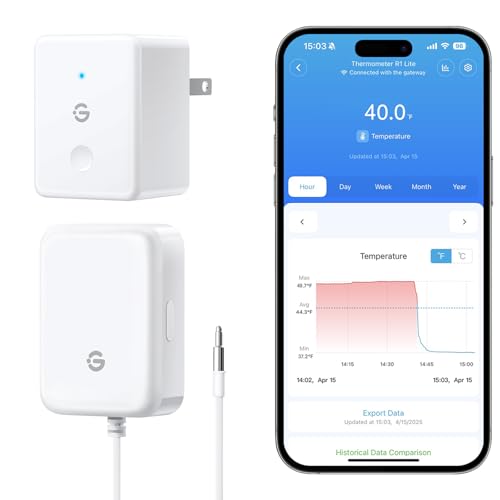
GoveeLife WiFi Refrigerator Thermometer with Alarm, Wireless Digital Freezer Temperature Gauge with App Control, 2 Years Free Data Export, for Home Kitchen Fridge Hot Tub(Only Support 2.4G Wi-Fi)
Smart 3-Way Alerts & Remote Temperature Monitoring:Get instant app notifications, email alerts, and buzzer alarms when temperatures exceed…
As an affiliate, we earn on qualifying purchases.
As an affiliate, we earn on qualifying purchases.

Midea MRF29D6AST 29.3 Cu. Ft. Stainless 3-Door French Door Smart Refrigerator
Dual Ice Maker With Water And Ice Dispenser
As an affiliate, we earn on qualifying purchases.
As an affiliate, we earn on qualifying purchases.