
To use IFTTT with Alexa and Google for advanced automation, start by creating accounts and signing into each platform. Connect your smart devices and services, then authorize IFTTT to access them. Next, create or find applets that trigger actions across both ecosystems, like voice commands activating routines or devices. Test your automations and adjust settings if needed. Keep exploring to discover how to craft even more powerful, integrated smart home experiences.
Key Takeaways
- Set up active accounts for Alexa, Google Assistant, and IFTTT, then connect and authorize each platform within IFTTT.
- Link your smart devices and services through IFTTT to enable cross-platform automation.
- Create custom applets by defining specific triggers (e.g., voice commands) and actions for advanced routines.
- Test automations thoroughly, troubleshoot connection issues, and reauthorize services to ensure reliable performance.
- Use IFTTT to combine multiple commands, schedule routines, and integrate diverse ecosystems for a seamless smart home experience.
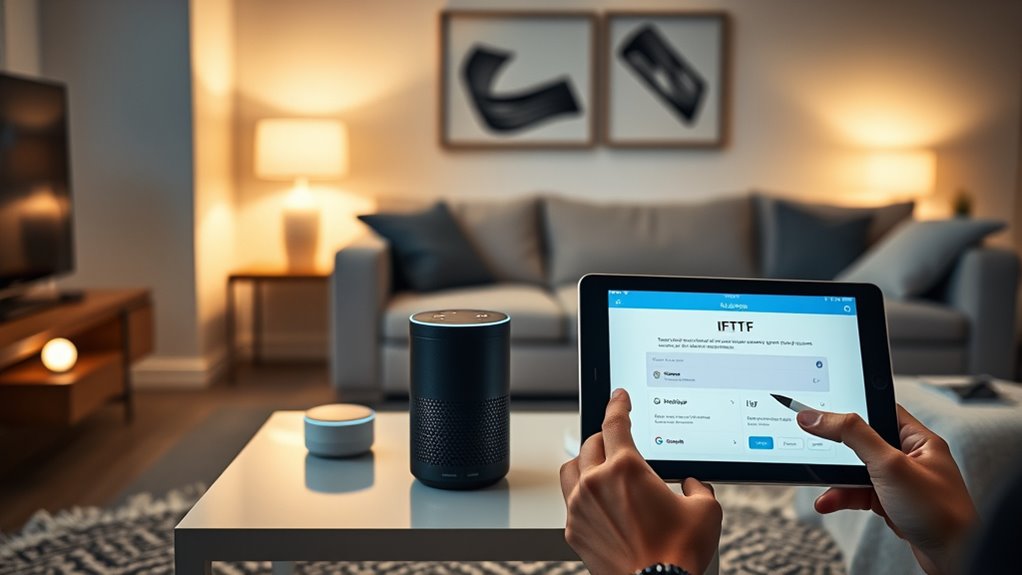
Ever wondered how to seamlessly connect your smart devices and automate tasks across platforms? With IFTTT (If This Then That), you can create powerful automations that link Alexa, Google Assistant, and a variety of smart gadgets, making your home smarter and more responsive. The process is straightforward once you understand the steps involved, and it allows you to customize your automation setup to suit your daily routines. Additionally, understanding modern kitchen technology can help you integrate your smart appliances for a truly connected culinary experience.
First, you’ll need to set up accounts for each platform. Make sure you have active accounts for Alexa, Google Assistant, and IFTTT. Once that’s done, head over to the IFTTT website or app and sign in. Connecting your accounts is simple: you just authorize IFTTT to access each service. For Alexa, you’ll enable the Amazon Alexa service, and for Google, you’ll connect the Google Assistant service. This linking process grants IFTTT permission to act on your behalf and execute commands across platforms.
Next, you search for existing applets or create your own. Applets are pre-made automations that perform specific tasks, like turning on lights when you say a particular phrase. If you want a custom automation, click on “Create” and define the trigger and action. For example, you could set a trigger like “Say ‘Good Morning’ to Alexa,” and then automate a series of actions such as playing your favorite morning playlist on Spotify, turning on the coffee maker, and adjusting your thermostat. When creating these applets, pay attention to the specific services involved; some integrations may require additional setup or device-specific credentials.
Once your applet is set up, activate it and test your automation. Speak the trigger phrase or perform the action that should initiate the automation and observe whether everything executes correctly. If not, revisit the setup steps, check your device connections, and confirm permissions are granted. Debugging is often just a matter of reauthorizing services or refining your applet’s conditions.
Using IFTTT with Alexa and Google Assistant enable a level of automation that saves you time and enhances convenience. It allows different ecosystems to work together seamlessly, so instead of managing each device separately, you can control multiple devices through simple voice commands or scheduled actions. Whether it’s adjusting your lighting, controlling your smart appliances, or setting reminders, this setup offers a flexible way to tailor your smart home environment. With a bit of initial configuration, you’ll enjoy a home that responds intelligently to your commands, making everyday routines effortless and more connected.

Amazon Basics Smart Plug, Works with Alexa Only, 2.4 GHz Wi-Fi, No Hub Required, 4-Pack, White
SIMPLE TO SET UP WITH ALEXA: Get started in minutes with multiple setup options, including a zero touch…
As an affiliate, we earn on qualifying purchases.
As an affiliate, we earn on qualifying purchases.
Frequently Asked Questions
Can I Connect Multiple Smart Home Devices With IFTTT, Alexa, and Google?
Yes, you can connect multiple smart home devices with IFTTT, Alexa, and Google. You simply need to guarantee each device is compatible and linked to the respective platform. Then, create IFTTT applets that trigger actions across your devices. This setup allows you to automate and control multiple devices simultaneously, making your smart home more integrated and responsive to your needs. Just double-check device compatibility and account connections.
Is There a Limit to How Many Applets I Can Create on IFTTT?
Think of creating applets on IFTTT like filling a jar—there’s a limit, but it’s pretty generous. You can create up to 5,000 applets per account, which is enough for most smart home setups. Once you hit this cap, you’ll need to delete some to make room for new ones. So, go ahead, experiment, and automate without worrying about hitting a tiny ceiling.
How Secure Is My Data When Using IFTTT With Alexa and Google?
Your data security with IFTTT, Alexa, and Google depends on how carefully you manage permissions and privacy settings. While IFTTT uses encryption to protect your information, there’s always some risk when sharing data across smart devices and cloud services. You should review each platform’s privacy policies, disable unnecessary permissions, and stay updated on security features. Staying vigilant helps guarantee your data remains as secure as possible while automating your smart home.
Can I Automate Routines Across Different Smart Home Ecosystems Simultaneously?
Yes, you can automate routines across different smart home ecosystems simultaneously. You just need to set up IFTTT applets that connect your devices from various platforms like Alexa, Google, and others. By creating triggers and actions that span multiple services, you get synchronized control over your smart devices. This allows you to streamline your routines, making your smart home more integrated and responsive to your needs.
What Are the Best Practices for Troubleshooting IFTTT Automation Issues?
Think of troubleshooting IFTTT issues like untangling a knot—stay patient and methodical. First, check your app and service connections; confirm they’re authorized and up-to-date. Next, verify your applet settings and triggers. If problems persist, review your internet connection and try disabling and re-enabling the applet. Clearing cache or reinstalling apps can also help. With a steady approach, you’ll get your automations running smoothly again.

Google Nest Hub 7” Smart Display with Google Assistant (2nd Gen) – Chalk
VALUE BUNDLE INCLUDES: Google Nest Hub 2nd Generation with English, Spanish, French and Portuguese Global Language Compatibility so…
As an affiliate, we earn on qualifying purchases.
As an affiliate, we earn on qualifying purchases.
Conclusion
By mastering how to connect IFTTT with Alexa and Google, you open endless automation possibilities. Some might think it’s too complicated or limited, but once you get the hang of it, you’ll see how simple and powerful it really is. Don’t let doubts hold you back—start small, experiment, and enjoy smarter living. With patience, you’ll turn your voice commands into seamless, personalized routines that truly enhance your daily life.

YoLink Smart Home Starter Kit: Smart Plugs with Energy Monitoring & Hub Kit, 2 Smart Outlet, Compatible with Alexa, Google, IFTTT, 1/4 Mile World's Longest Range
World's Longest Wireless Range: Powered by LoRa technology, the long-range yet low-power system offers the industry’s longest receiving…
As an affiliate, we earn on qualifying purchases.
As an affiliate, we earn on qualifying purchases.

EIGHTREE Smart Plug, WiFi Outlet Works with Alexa & Google Home, Smart Home Socket with Remote Control & Timer Function, 2.4GHz WiFi Only, 4 Packs
Warm Tips: To use Alexa and Google Home for voice control, please connect the plug with the “Smart…
As an affiliate, we earn on qualifying purchases.
As an affiliate, we earn on qualifying purchases.