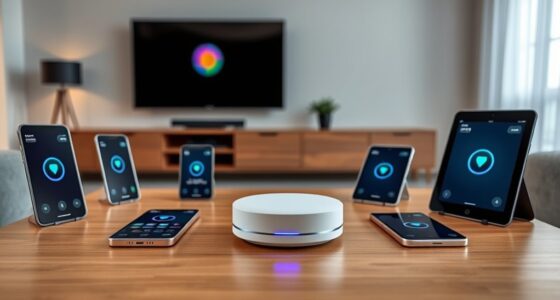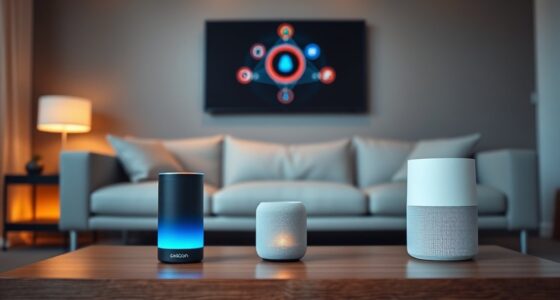

To connect your smart home to your car’s assistant, start by ensuring your smart devices are compatible with Alexa Auto or Android Auto and are properly set up within their respective apps. Then, link your smart home accounts to your vehicle’s voice assistant through Bluetooth, USB, or Wi-Fi, and activate the relevant skills like “Smart Home” or connect via Google Home. Once connected, you can control your devices with voice commands or routines. If you want to learn detailed steps, keep exploring further.
Key Takeaways
- Verify smart home device compatibility with Alexa Auto or Android Auto and ensure they are properly connected within their respective apps.
- Pair your smartphone with your vehicle using Bluetooth, USB, or Wi-Fi, then link your smart home accounts in the Alexa or Google Home app.
- Enable the “Smart Home” skill in Alexa or connect devices through Google Assistant to enable voice control in your car.
- Create routines or shortcuts in the app to automate multiple smart device actions with a single voice command.
- Test device control via your vehicle and troubleshoot connectivity or app issues to ensure reliable operation.
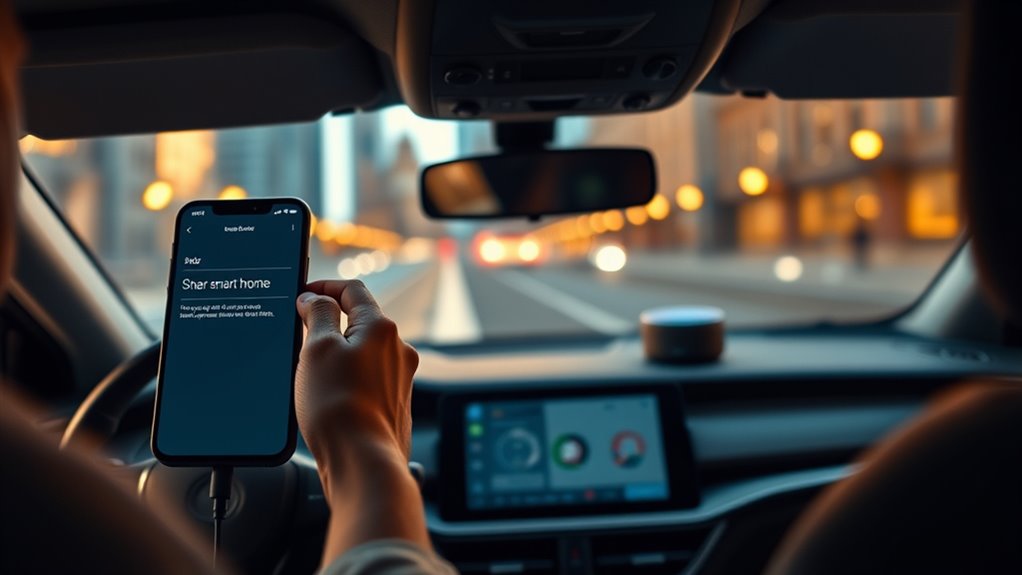
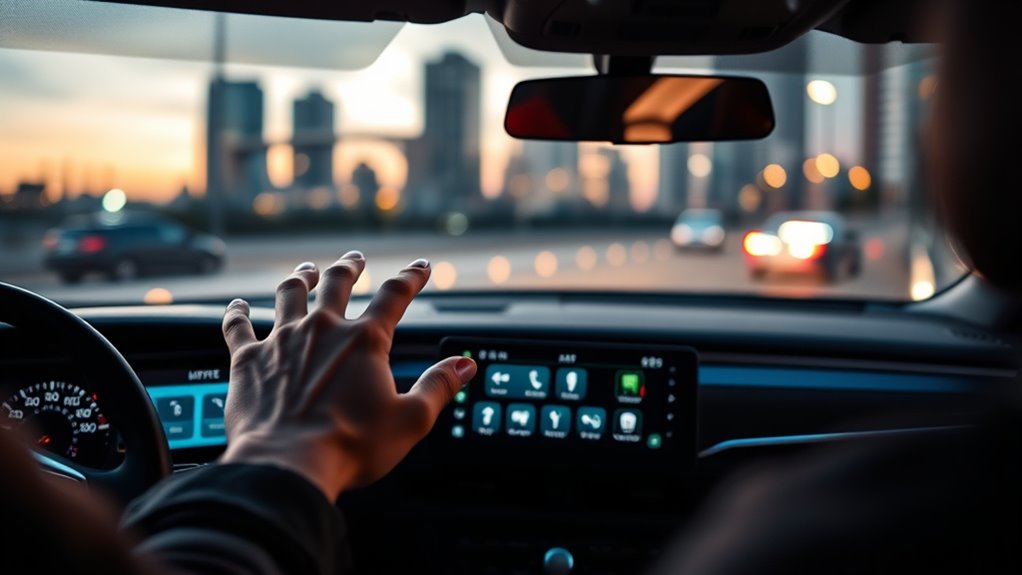
As smart technology continues to evolve, connecting your home’s devices to your car’s assistant can make daily routines more seamless. Imagine starting your day with your coffee brewing, your thermostat adjusting to a comfortable temperature, and your favorite playlist ready—all while you’re on the road. This integration isn’t just a futuristic idea; it’s achievable with a few straightforward steps. Whether you use Alexa Auto or Android Auto, the key is linking your smart home ecosystem to your vehicle’s interface.
First, confirm all your devices are compatible and properly set up. For Alexa, this means verifying that your smart home devices—lights, thermostats, security cameras—are connected and functioning within the Alexa app. For Android Auto, your devices should work with Google Assistant and be compatible with your smart home platform. Check your device manufacturer’s instructions to verify compatibility and update your apps and firmware to the latest versions. Having everything up to date minimizes connection issues and ensures smooth operation.
Ensure all your smart devices are compatible, connected, and updated for seamless integration with Alexa or Android Auto.
Next, connect your smartphone to your car’s system via Bluetooth, USB, or Wi-Fi, depending on your vehicle’s capabilities. For Alexa Auto, open the Alexa app on your phone, and ensure that your smart home devices are linked within the app. You may need to enable the “Smart Home” skill if it’s not already activated. Once linked, you can ask Alexa to control your smart devices directly from your car, such as turning on the lights or adjusting the thermostat. For Android Auto, open the Google Assistant and ensure it’s linked to your smart home account. You can do this by opening the Google Home app, linking your smart devices, and then activating Google Assistant in Android Auto. From there, you can issue voice commands to control your devices, like “Hey Google, set the living room temperature to 72 degrees.”
It’s also beneficial to customize routines or shortcuts that can be triggered via voice commands. For example, you could set a routine that adjusts the lighting and locks the doors when you say, “Good morning,” making your morning commute more efficient. Some systems allow you to create these routines within their respective apps, so spend a few minutes configuring them to suit your needs.
Additionally, understanding the cloud-based infrastructure supporting these smart integrations can help troubleshoot and optimize your setup, ensuring reliable control from your vehicle. Finally, test your setup before heading out. Make sure you can control your smart home devices through your car’s assistant reliably. Practice giving commands, and troubleshoot any issues by checking your app settings, device connectivity, or software updates. Once everything is set up, you’ll enjoy the convenience of managing your smart home from your vehicle, making your daily routines more connected and effortless. Connecting your smart home to your car’s assistant isn’t just about technology—it’s about creating a smarter, more integrated lifestyle.

GHome Smart Plug, WiFi Smart Plugs Compatible with Alexa and Google Home, Smart Outlet Timer with APP Remote Control, 2.4GHz Wi-Fi Only, No Hub Required, ETL FCC Listed, White
Stability Upgrade Quick Connection:Supports Bluetooth or WiFi connection.The improved WiFi technology let you quick connection and stay stable,no…
As an affiliate, we earn on qualifying purchases.
As an affiliate, we earn on qualifying purchases.
Frequently Asked Questions
Can I Connect Multiple Smart Home Devices to My Car’s Assistant Simultaneously?
Yes, you can connect multiple smart home devices to your car’s assistant at the same time. Your car’s system typically supports multiple device integrations through your smart home app or voice assistant platform. Just make certain all devices are compatible and properly set up in your app. Once connected, you can control lights, thermostats, and other smart devices seamlessly, making your driving experience more convenient and integrated with your smart home ecosystem.
Is There a Cost Associated With Integrating My Smart Home With My Car’s Assistant?
Did you know over 60% of smart home users plan to integrate their devices with their cars? The good news is, connecting your smart home to your car’s assistant typically costs nothing extra, as most integrations are free through apps or subscriptions you already have. You just need compatible devices and a stable internet connection. So, you can enjoy seamless control without additional fees, making your smart experience more convenient.
How Secure Is the Connection Between My Smart Home and My Car’s Assistant?
Your connection between your smart home and your car’s assistant is generally secure, thanks to encryption and regular security updates. However, always use strong, unique passwords and enable two-factor authentication when available. Be cautious about sharing sensitive information through voice commands and keep your device software up-to-date. You’re responsible for maintaining security, but providers work hard to protect your data, giving you peace of mind during your drives.
What Should I Do if My Smart Home Devices Aren’T Responding Through the Car?
Think of your smart home devices as a choir that’s stopped singing. First, check if your devices are online and powered. Restart your smart home hub and your car’s system. Make sure your apps are updated and Wi-Fi or Bluetooth connections are solid. If they still don’t respond, unpair and re-pair your devices. Sometimes, a simple reset hits the right note to get everything harmonizing again.
Are There Compatibility Limitations for Different Smart Home Brands and My Car Models?
You might face compatibility limitations depending on your smart home brands and car models. Not all smart devices work seamlessly with every car system, especially if they use different protocols or platforms. Check your car’s compatibility list and your smart home app’s supported devices before connecting. Sometimes, firmware updates or third-party apps can help bridge gaps, but it’s best to verify compatibility to avoid frustrations.
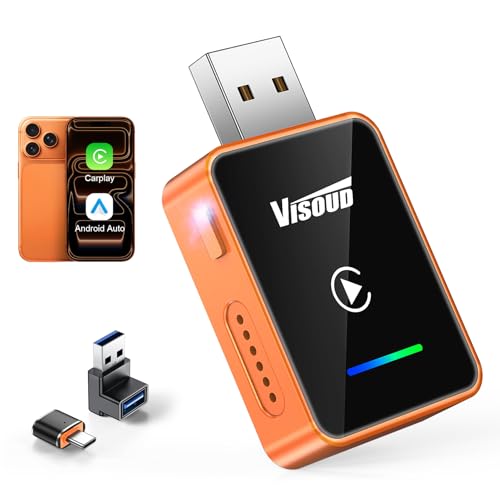
2026 Wireless CarPlay & Android Auto Adapter, One-Click Switch, 3s Auto Reconnect, A9 Chip, Bluetooth 6.0, 5.8GHz WiFi, Plug & Play, with USB-C & Right-Angle Cables
【Exclusive One-Click Device Switching】Visoud wireless carplay adapter features a smart one-click button that lets you instantly switch between…
As an affiliate, we earn on qualifying purchases.
As an affiliate, we earn on qualifying purchases.
Conclusion
Now that you know how to connect your smart home to your car’s assistant, imagine the possibilities that await just around the corner. As you drive, your home could anticipate your needs, adjust the temperature, or even start your favorite playlist—all without lifting a finger. But there’s more to explore. Stay tuned—your smart home and car are about to become even more connected in ways you never saw coming. The future of seamless living is just getting started.
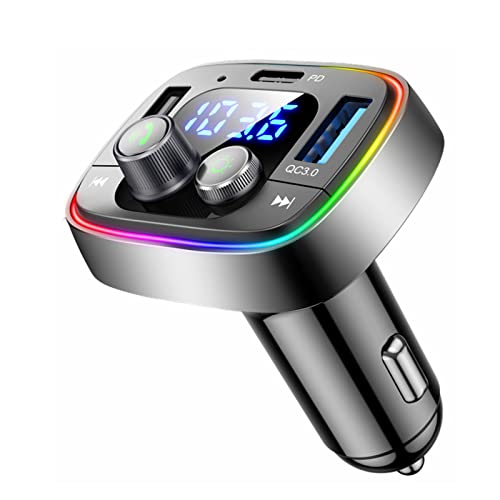
LIHAN USB C Bluetooth 5.4 Car Adapter, Wireless Upgrade Audio System for Non-Bluetooth Vehicles, FM Radio Transmitter, 48W Fast Charging, Stable Hands-Free Calling, MP3 Music Player, Support USB/TF
[3 Fast Charging Ports] Charge 3 devices simultaneously with USB-C PD 3.0, QC 3.0 USB port, and standard…
As an affiliate, we earn on qualifying purchases.
As an affiliate, we earn on qualifying purchases.

Smart Car Air Freshener Diffuser Voice Control with Starry Projection Light, 3 Adjustable Modes Intelligent Aromatherapy for Essential Oil, Smart Auto On/Off, Voice Edition (Cologne + Ocean)
【Automatic Switch-Off & Easy Use】This smart car air freshener features smart motion detection: Turns on when you enter…
As an affiliate, we earn on qualifying purchases.
As an affiliate, we earn on qualifying purchases.