
To set up voice profiles on Alexa, open the app, go to “Settings,” select “Account Settings,” and tap “Recognize My Voice,” then follow prompts to create profiles by reading specific phrases. For Google Assistant, open the Google Home app, tap your profile icon, go to “Voice Match,” and set up profiles by repeating phrases. Using these steps, you’ll enable personalized experiences for each user—continue exploring if you want to learn more about optimizing your device.

Get home appliances delivered free — and shop member deals
- Fast, free delivery on millions of items
- Access to Prime Big Deal Days deals on October 6–7
- Prime Video, Amazon Music and more included
Key Takeaways
- For Alexa, go to Settings > Account Settings > Recognize My Voice, then follow prompts to create profiles.
- On Google Assistant, open the Google Home app, access Settings > Voice Match, and set up individual profiles.
- Both platforms require users to read specific phrases aloud during setup to train voice recognition.
- Multiple profiles enable personalized responses for each user, such as music, calendar, and news updates.
- Regular training and updates improve recognition accuracy and ensure a seamless, personalized smart device experience.
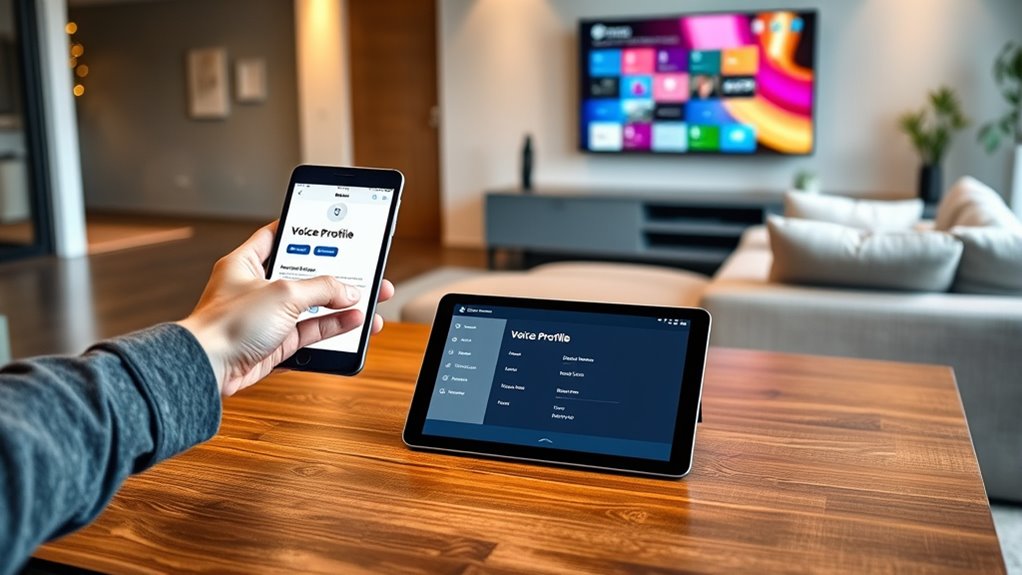
Setting up voice profiles on Alexa and Google allows your smart devices to recognize you and deliver personalized experiences. When your voice is identified, the devices can provide tailored responses, play your preferred music, or access your calendar without switching accounts or manually selecting profiles. This feature makes using smart devices more seamless and efficient, especially when multiple people share the same home.
On Alexa, you start by opening the Alexa app on your smartphone. Confirm your device is connected to the internet, then navigate to the menu and select “Settings.” From there, tap on “Account Settings” and choose “Recognize My Voice.” If you haven’t set up voice profiles before, you’ll be prompted to create one. Alexa will guide you through a simple process where you read a few phrases aloud, allowing the system to learn your voice. This process helps Alexa distinguish your commands from other users’. Once the profile is set up, you can add additional users by repeating the process for each person. Each profile will need to speak the phrases so Alexa can build a reliable voice model. After setting up, Alexa automatically recognizes who’s speaking and responds accordingly, personalizing music playlists, news updates, or calendar appointments. Additionally, regular voice profile training helps improve recognition accuracy over time.
Google Assistant’s voice profile setup is equally straightforward. Open the Google Home app on your phone and tap the profile icon in the top right corner. Select “Settings,” then scroll down to find “Voice Match.” Tap on “Set Up Voice Match” and follow the prompts. Google Assistant will ask you to say specific phrases multiple times, which helps it learn your voice patterns. You can add multiple voice profiles, enabling the assistant to distinguish among different users. Once set up, Google can greet you by name and provide personalized results based on your preferences. For example, it can tell you about your upcoming appointments or play your favorite music without requiring manual selection. You can also teach Google Assistant to recognize voice commands for individual accounts, making shared devices more personalized and efficient. Properly trained voice profiles ensure the smart devices respond accurately and securely.
Amazon Echo with voice recognition
As an affiliate, we earn on qualifying purchases.
As an affiliate, we earn on qualifying purchases.
Frequently Asked Questions
Can Voice Profiles Be Customized for Different Languages?
Yes, you can customize voice profiles for different languages on Alexa and Google. You simply need to set up each voice profile with the preferred language in the app. Once done, the device recognizes each user’s voice, responds in their chosen language, and offers personalized settings. This feature makes it easier to enjoy a seamless, multilingual experience, especially if you share your device with others who speak different languages.
How Many Voice Profiles Can I Create per Device?
You can create up to six voice profiles per device on Alexa and Google. This allows each user to have a personalized experience, like customized music playlists, reminders, and smart home controls. To add new profiles, simply go to the app settings and follow the prompts. Keep in mind, the exact number may vary depending on device updates, but generally, six profiles is the limit for most devices.
Can Children Have Separate Voice Profiles?
Imagine your child’s laughter filling the room as their unique voice echoes through your device. Yes, children can have separate voice profiles, allowing Alexa or Google to recognize them and personalize responses. You’ll love how this feature creates a safe, tailored experience for your little one, from bedtime stories to educational games. Setting up a child’s voice profile helps keep their digital world secure while making interactions more engaging and fun.
Do Voice Profiles Work With Third-Party Apps?
Yes, voice profiles can work with some third-party apps, but it depends on the app’s compatibility. When you set up voice profiles, Alexa and Google Assistant can recognize different users and personalize responses. However, not all third-party apps support this feature. You should check each app’s settings or documentation to see if they integrate with voice recognition, ensuring you get a personalized experience across your devices.
How Secure Are Voice Profiles Against Impersonation?
Voice profiles offer decent security, but they aren’t foolproof against impersonation. If someone mimics your voice closely, they might access your personalized info or control smart devices. To improve security, use additional verification methods like PINs or voice code features. Always stay cautious, especially with sensitive commands, and regularly update your device’s security settings to minimize the risk of impersonation.
Google Nest Audio with voice match
As an affiliate, we earn on qualifying purchases.
As an affiliate, we earn on qualifying purchases.
Conclusion
Creating voice profiles on Alexa or Google makes your smart home experience seamless and personalized. Did you know that 85% of users find voice recognition features improve their daily routines? By setting up profiles, you make certain each family member gets tailored responses and content. So, take a few minutes to set up your voice profiles today—you’ll enjoy a smarter, more efficient home where technology truly works for you.
smart speaker with multiple user profiles
As an affiliate, we earn on qualifying purchases.
As an affiliate, we earn on qualifying purchases.
voice recognition smart home device
As an affiliate, we earn on qualifying purchases.
As an affiliate, we earn on qualifying purchases.
NFL season / tailgating Picks
team gear
As an affiliate, we earn on qualifying purchases.

![Thrive Infinite — solid brand name. Side note: more clients now ask Claude/ChatGPT "find me a coach for [their thing]" before they ever browse a site. Free 30-sec scan that shows what AI agents actually see when they look at you. Vid below.](https://theintellihome.com/wp-content/uploads/2026/05/thrive-infinite-solid-brand-name-side-note-more-clients-now-ask-claude-chatgpt-f-featured-560x300.jpg)