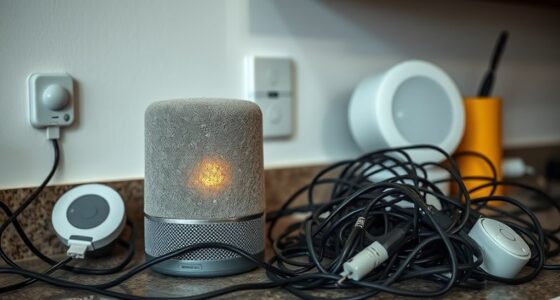
To back up and restore your smart home system, start by exporting your device settings, automations, and scenes through the system’s app or interface. Use built-in backup options or cloud services for automatic backups and store copies securely in multiple locations. When restoring, follow the manufacturer’s instructions to re-import your backup files, verify that everything works correctly, and guarantee minimal downtime. Keep exploring for detailed steps that make the process smoother.
Key Takeaways
- Regularly export device configurations and automation settings using your system’s backup or export features.
- Enable cloud backup options to automatically save system data and preferences off-site.
- Store multiple backup copies in different locations, such as external drives or cloud storage for safety.
- Follow manufacturer instructions carefully when restoring backups to ensure all settings are correctly reloaded.
- Verify system functionality after restore by checking automations, scenes, and device configurations.
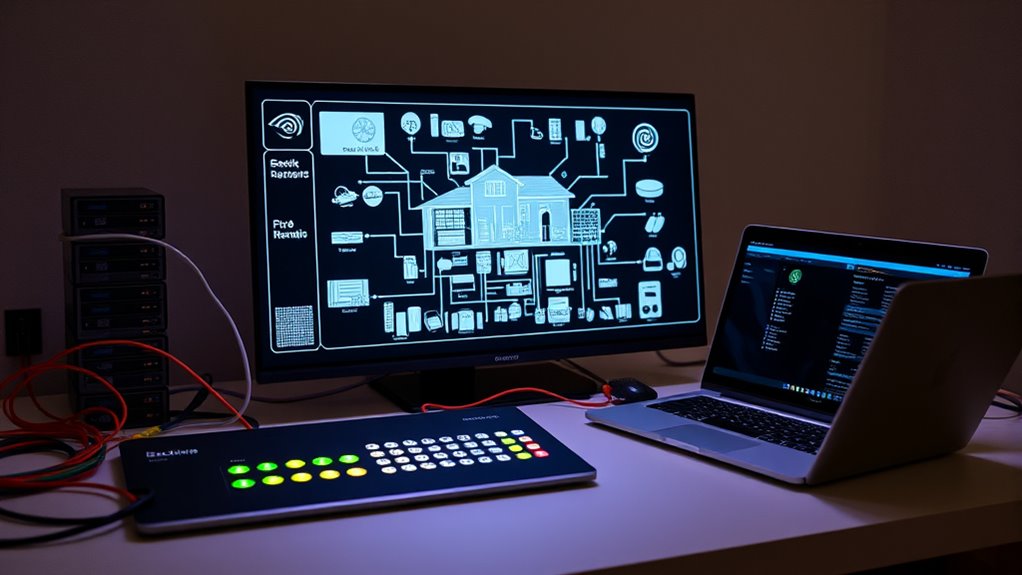
Backing up your smart home system is essential to prevent data loss and guarantee quick recovery if something goes wrong. Whether it’s a firmware update gone awry, a hacking attempt, or accidental deletion, having a recent backup means you can restore your setup swiftly without losing your preferences, device configurations, or automation routines. The first step is to understand what data needs safeguarding. Typically, this includes device settings, custom scenes, automations, and sometimes user data stored within the system’s cloud or local storage. Many smart home platforms, like Samsung SmartThings, Hubitat, or Apple HomeKit, offer built-in backup options, but you might also need to rely on third-party tools or manual methods depending on your setup.
Once you identify what to back up, it’s wise to check your system’s documentation or app settings for specific instructions. Most platforms allow you to export configuration files or create snapshots of your device states. For example, some systems let you generate a backup file directly within the app or interface, which you can then save securely on your computer or cloud storage. If your system supports cloud backups, enable this feature to automate the process. Cloud backups are especially convenient because they eliminate the need for manual exports and ensure your data is stored off-site, reducing risks associated with physical damage or theft.
It’s a good practice to schedule regular backups, especially after making significant changes to your system. Automating this process reduces the chance of forgetting and ensures you always have a recent restore point. Keep multiple copies of backups in different locations—such as an external drive, a cloud service, or a network-attached storage (NAS)—to prevent data loss due to hardware failure. When creating backups, verify their integrity periodically by attempting a restore on a test system or a separate device. This helps to prevent data corruption and confirms that your backup files are usable and contain all necessary data.
Restoring your system is just as important as backing it up. When you need to recover, follow the manufacturer’s instructions carefully, ensuring you’re restoring from a recent backup. Before initiating the restore process, disconnect unnecessary devices or power down the system if recommended. Upload or import your backup file through the system’s interface, and allow the process to complete fully. Once restored, verify that all your automations, device configurations, and scenes are functioning correctly. Restoring from a good backup minimizes downtime, helps you recover quickly from mishaps, and keeps your smart home running smoothly without losing your personalized setup.

WiFi Wireless Alarm System for Home Security – 24/7 Protection Smart Home Devices 4.3" Touch Screen, GSM/4G+WiFi, App Instant Alerts, No Monthly Fee, Alexa Compatible for Villa, Kids Safety (24 pcs)
𝐃𝐮𝐚𝐥 𝐖𝐢𝐅𝐢 + 𝟒𝐆 𝐒𝐞𝐜𝐮𝐫𝐢𝐭𝐲: Equipped with a 2.4GHz WiFi and 2G/4G connection (5G not supported), this home…
As an affiliate, we earn on qualifying purchases.
As an affiliate, we earn on qualifying purchases.
Frequently Asked Questions
What Formats Are Compatible for Smart Home Backups?
You’ll typically find that smart home backups support formats like JSON, XML, or proprietary files specific to your system. These formats store configuration settings, device data, and automation scripts. Check your system’s app or device documentation to verify compatible formats. Using these files guarantees you can easily restore your setup if needed, and some systems even allow exporting backups in multiple formats for added flexibility.
How Often Should I Back up My System?
You should back up your smart home system weekly or whenever you make significant changes. Regular backups make sure you won’t lose important settings or configurations if something goes wrong. If you frequently update your devices or settings, consider backing up more often, like bi-weekly. Automating backups can save you time and prevent data loss, giving you peace of mind knowing your system is always protected and easily restorable.
Can I Automate the Backup Process?
Think of your smart home backup as a safety net—you can definitely automate it. Most systems let you set regular backups on a schedule, so you don’t have to remember. Check your smart home app or device settings to enable automatic backups, and you’ll always have a recent copy ready. This way, when something goes wrong, you bounce back quickly, like a trampoline springing you back to normal.
What Security Measures Protect Backup Files?
You protect your backup files with strong encryption, ensuring only authorized devices can access them. Using secure passwords and multi-factor authentication adds extra layers of security. Keep backups stored in trusted, encrypted cloud services or offline on external drives, which you regularly update. Avoid sharing backup files over unsecured networks, and always monitor access logs to detect any suspicious activity. These measures keep your backup data safe from unauthorized access.
How to Troubleshoot Backup Failures?
You should first check your device’s storage space and make certain it has enough room for backups. Verify your internet connection, as unstable networks can cause failures. Look for error messages or logs that indicate specific issues, then restart your device and try the backup again. If problems persist, update your system firmware or software, and consider resetting your backup settings to resolve corruption or misconfigurations.

SSK 2TB Portable External SSD with Wi-Fi Hotspot, Personal Cloud Smart Storage Supports Auto-Backup, Phone/Tablet PC/Laptop Wireless Remote Access
High speed and large capacity: 2TB storage capacity(SSD), Up to 300Mbps high speed wireless transmission, without geographical restrictions,remote…
As an affiliate, we earn on qualifying purchases.
As an affiliate, we earn on qualifying purchases.
Conclusion
Keeping your smart home system backed up and restored is like having your own digital DeLorean—ready to go back in time if things go awry. By regularly saving your settings and data, you ensure your smart home stays seamless, even if a firmware gremlin or power surge strikes. So, don’t wait for a catastrophe; be proactive. Remember, in this tech age, a little prep today preserves the chaos at bay tomorrow.
SSK 2TB Portable External SSD with Wi-Fi Hotspot, Personal Cloud Smart Storage Supports Auto-Backup, Phone/Tablet PC/Laptop Wireless Remote Access
High speed and large capacity: 2TB storage capacity(SSD), Up to 300Mbps high speed wireless transmission, without geographical restrictions,remote…
As an affiliate, we earn on qualifying purchases.
As an affiliate, we earn on qualifying purchases.
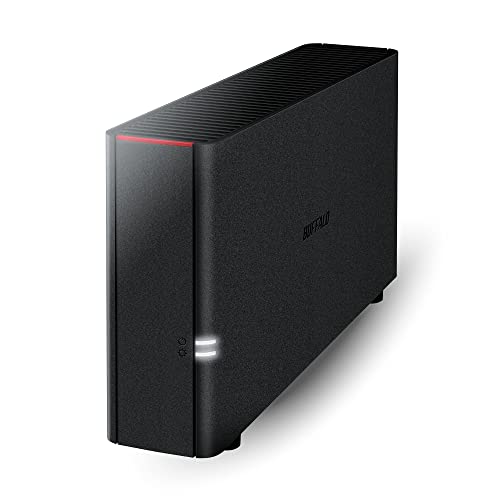
BUFFALO LinkStation 210 2TB 1-Bay NAS Network Attached Storage with HDD Hard Drives Included NAS Storage that Works as Home Cloud or Network Storage Device for Home
Value NAS with RAID for centralized storage and backup for all your devices. Check out the LS 700…
As an affiliate, we earn on qualifying purchases.
As an affiliate, we earn on qualifying purchases.