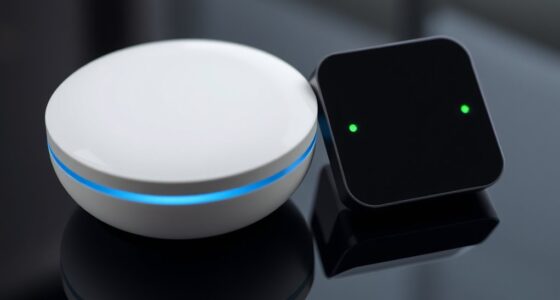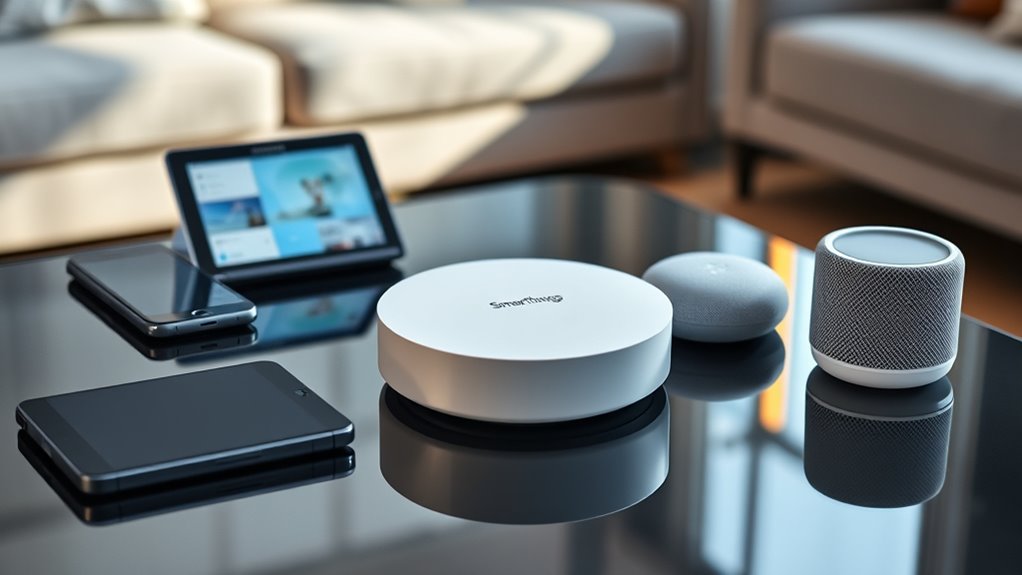

SmartThings is a user-friendly smart home hub that connects compatible devices like lights, thermostats, and security cameras, allowing you to control everything from a single app. You simply plug in the hub, download the app, and follow step-by-step instructions to link your devices. With features like automation, voice control, and remote access, it makes managing your smart home easier and more convenient. Keep exploring to discover how to get the most out of your setup.
Key Takeaways
- SmartThings is a centralized hub that connects and manages compatible smart home devices via a single app.
- Setting up involves connecting the hub to Wi-Fi, downloading the app, and pairing devices through guided instructions.
- Automations and routines allow simultaneous control of multiple devices, like morning or bedtime settings.
- The system uses cloud infrastructure for remote access and reliable device synchronization from anywhere.
- Compatible with voice assistants like Alexa and Google Assistant for hands-free control and personalized automation.
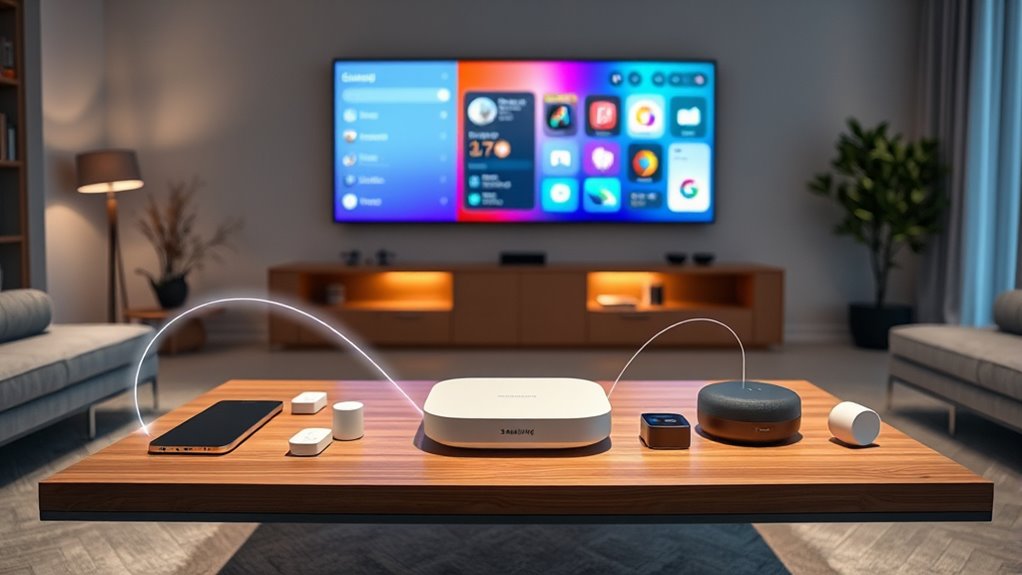
Have you ever wondered how smart homes make life easier? It’s all thanks to integrated devices and a central hub that connects everything seamlessly. That’s where Samsung’s SmartThings comes in. As a beginner, understanding what it is and how it works can seem overwhelming, but once you get the hang of it, you’ll see how much simpler your daily routines become. SmartThings is essentially a smart home hub that unites various compatible devices—lights, thermostats, security cameras, locks, and more—into one easy-to-control system. Instead of managing each gadget separately, you control everything from a single app on your phone or tablet.
SmartThings unites compatible devices into a single, easy-to-control smart home system for simplified living.
Getting started with SmartThings is straightforward. You’ll want to set up the hub first, plugging it into your Wi-Fi router and powering it up. Once it’s online, you’ll download the SmartThings app, available for Android and iOS devices. The app acts as your command center, guiding you through connecting compatible devices. Many smart devices are compatible out of the box, but it’s good to check the compatibility list beforehand. When you add a device, the app walks you through the pairing process step-by-step, making setup easier than you might expect. After connecting a few devices, you’ll start seeing how they can work together through automation.
Automation is the real power of SmartThings. Once your devices are linked, you can create routines that trigger multiple actions at once. For example, you could set a “Good Morning” routine that turns on the lights, adjusts the thermostat, and starts your coffee maker—all with a single tap or voice command. You can also schedule actions or set sensors to trigger responses automatically. For instance, motion sensors can turn on hallway lights when you walk by at night, and security sensors can send alerts if something’s amiss. These automations help streamline your day and add a layer of convenience and security. Additionally, cloud-based infrastructure ensures your devices stay synchronized and accessible from anywhere, enhancing reliability and flexibility.
SmartThings also supports voice control through integrations with Alexa or Google Assistant. That means you can issue voice commands to turn on or off devices, change settings, or activate routines without touching your phone. This hands-free control is especially handy when your hands are full or you’re lying in bed. Over time, you’ll find how flexible and customizable the system is to fit your lifestyle. With a bit of patience and exploration, SmartThings can transform how you interact with your home, making everyday tasks effortless. It’s a smart investment that grows smarter as you add more compatible devices, giving you greater control and peace of mind.
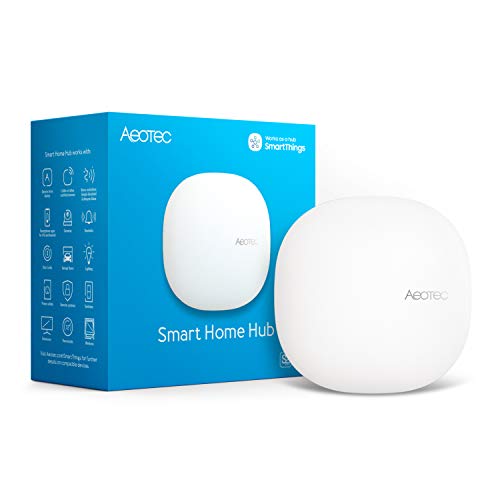
Aeotec Smart Home Hub, Works as a SmartThings Hub, Z-Wave, Zigbee, Matter Gateway, Compatible with Alexa, Google Assistant, WiFi
Connect & control your smart home — Easily link thousands of compatible devices from leading brands to create…
As an affiliate, we earn on qualifying purchases.
As an affiliate, we earn on qualifying purchases.
Frequently Asked Questions
How Do I Troubleshoot Connectivity Issues With Smartthings?
To troubleshoot connectivity issues with SmartThings, start by checking your Wi-Fi and device connections. Make sure your hub and devices are within range and restart your hub and router if needed. Update the SmartThings app and firmware regularly. Remove and re-add problematic devices, and verify your network settings. If issues persist, reset your hub to factory settings and set it up again, ensuring all devices are compatible and correctly connected.
Can I Use Smartthings With Third-Party Smart Home Devices?
Yes, you can use SmartThings with third-party devices, but it’s not always straightforward. Some devices are natively compatible, while others require custom integrations or hubs. You might need to install specific apps or enable developer options. Keep in mind, compatibility varies, so you’ll want to check each device’s specifications. With a little effort, you can expand your smart home universe beyond Samsung’s ecosystem and enjoy seamless control.
What Security Features Does Smartthings Offer?
SmartThings offers robust security features like device encryption to protect your data and secure communication. You can set up multi-factor authentication for added account security and manage access permissions easily. The platform also provides activity logs so you can monitor device actions and detect unusual activity. Additionally, automatic firmware updates help keep your system protected against vulnerabilities, ensuring your smart home remains safe and secure at all times.
How Do I Update the Firmware of My Smartthings Hub?
A stitch in time saves nine, so keeping your hub updated is essential. To update your SmartThings hub firmware, open the SmartThings app, tap on Devices, select your hub, then tap on Settings. Choose Firmware Update, and if an update is available, follow the prompts to install it. Make certain your hub stays connected to Wi-Fi during this process to guarantee a smooth update.
Is There a Way to Customize Automation Beyond Preset Options?
Yes, you can customize automations beyond preset options in SmartThings. You just need to use the “Create Automation” feature, where you can set your own triggers, conditions, and actions. Explore the “SmartApps” and “Custom Scripts” options if available, and use the automation editor to craft personalized routines. This way, you tailor your smart home experience exactly how you want it, making everything more responsive and convenient.

Smart Home Starter Kit | Includes Echo Hub, Amazon Smart Plug and 4 Amazon Basics Smart Bulbs, Designed for Alexa+
Getting started with smart home has never been easier – An all-in-one kit with a quick guided setup…
As an affiliate, we earn on qualifying purchases.
As an affiliate, we earn on qualifying purchases.
Conclusion
Think of SmartThings as the captain steering your smart home ship through calm and stormy waters alike. With it, you’re in control, guiding your devices smoothly across the digital seas. As you learn and grow with your hub, your home becomes a well-orchestrated symphony of convenience and comfort. Embrace this journey, and soon you’ll see your smart home thrive like a lush, flourishing garden under your careful watch.
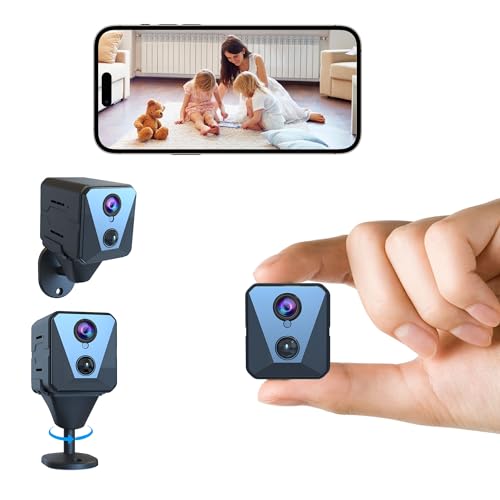
Funstorm 2025 Upgraded Security Camera, 4K HD Mini Nanny Cam for Home with Night Vision, WiFi Indoor Camera, 100 Days Long Battery Life, Motion Detection, Remote Viewing, Wireless Surveillance Cam
【Why choose us?】Newly upgraded indoor camera in 2025, 4K UHD picture quality and video quality, 100 days of…
As an affiliate, we earn on qualifying purchases.
As an affiliate, we earn on qualifying purchases.

EIGHTREE Smart Plug, WiFi Outlet Works with Alexa & Google Home, Smart Home Socket with Remote Control & Timer Function, 2.4GHz WiFi Only, 4 Packs
Warm Tips: To use Alexa and Google Home for voice control, please connect the plug with the “Smart…
As an affiliate, we earn on qualifying purchases.
As an affiliate, we earn on qualifying purchases.