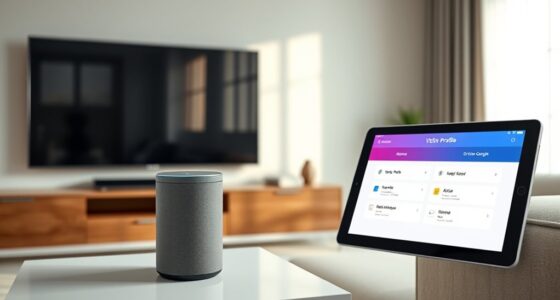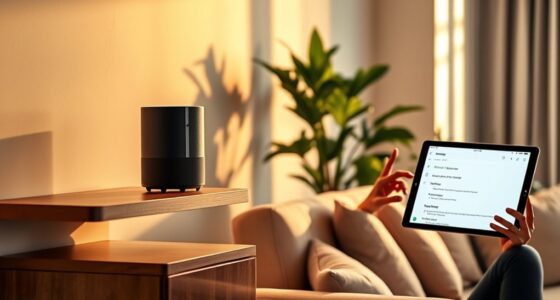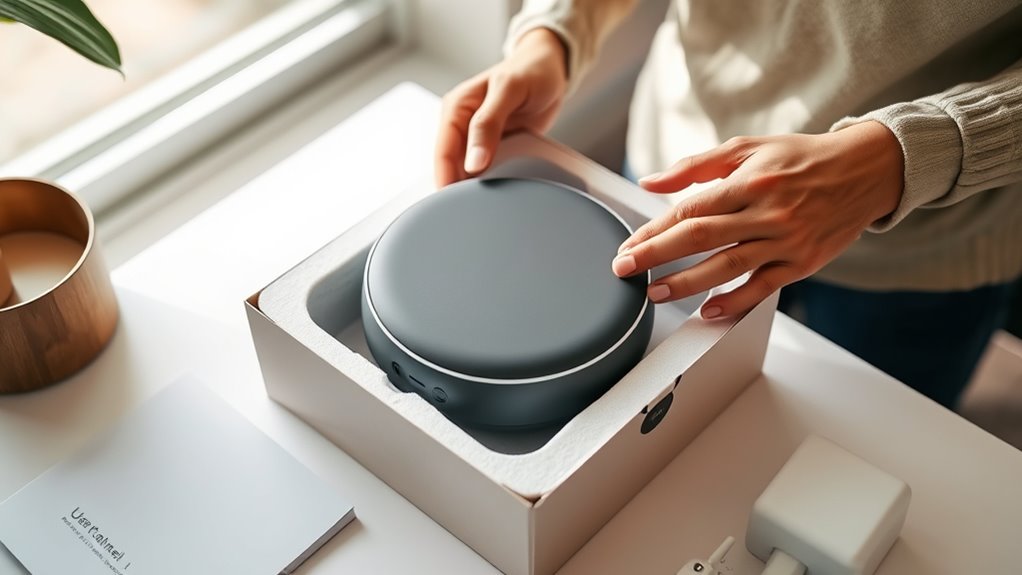

To establish your new smart speaker or display, start by choosing a central, stable spot away from obstructions and other electronics. Power on the device and connect your smartphone to the same Wi-Fi network. Use the device’s app to follow prompts for pairing, linking accounts, and customizing preferences like language and location. Test the device with simple commands to make certain it responds correctly. Keep exploring the setup process to learn how to maximize your smart home experience.
Key Takeaways
- Choose a central, stable location away from obstructions and other electronics for optimal performance.
- Ensure your smartphone or tablet is connected to the same Wi-Fi network and the device is in setup mode.
- Use the dedicated app to detect, connect, and pair the smart speaker or display, following on-screen prompts.
- Customize settings like language, voice, and linked accounts for personalized control and integration.
- Test device responses with simple commands to confirm proper setup and functionality before regular use.
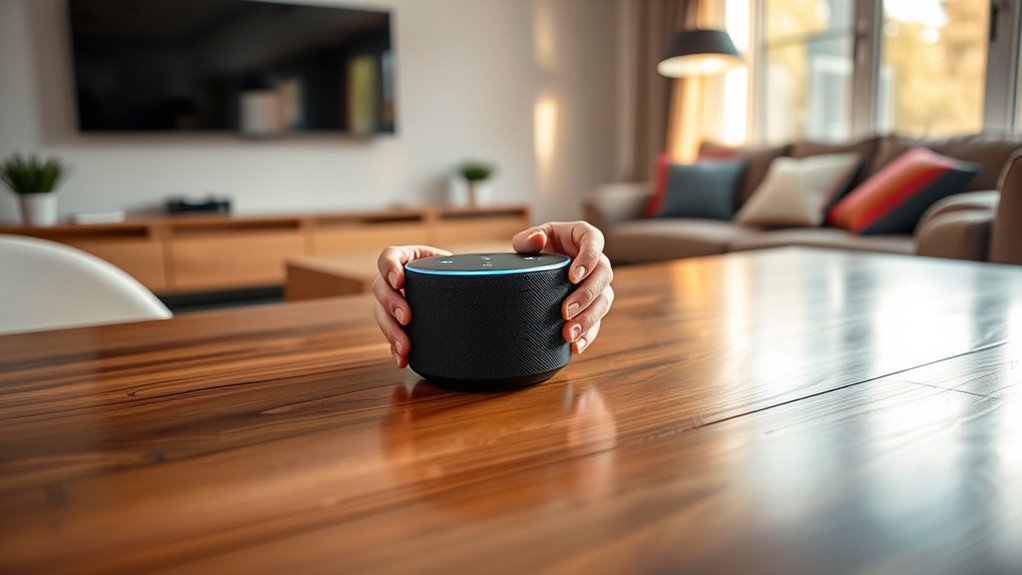
Setting up a new smart speaker or display is a straightforward process that quickly gets your device ready to enhance your daily routines. The first step is to find a suitable spot for your device, preferably in a central location where it can easily hear your voice and connect to your Wi-Fi network. Keep in mind that placing it on a stable surface away from obstructions will guarantee better sound quality and responsiveness. Before starting, make sure your smartphone or tablet is charged and connected to the same Wi-Fi network you want your smart device to use. This makes the setup process smoother and faster.
Once you have everything in place, power on the device. Most smart speakers or displays will automatically enter setup mode when powered on for the first time, indicated by a light or a spoken prompt. If it doesn’t, you might need to press and hold a specific button or follow the manufacturer’s instructions to initiate setup mode. Open the dedicated app provided by the device manufacturer on your phone or tablet. This app is essential because it guides you step-by-step through the setup process. Download it from your device’s app store if you haven’t already.
Power on your device; it should automatically enter setup mode with a light or voice prompt.
After launching the app, sign in with your account or create one if you don’t have it. The app will prompt you to connect your phone to the same Wi-Fi network you want your smart speaker or display to use. Follow the instructions to connect your device to the Wi-Fi, which typically involves selecting your network and entering your password. The app then searches for the new device nearby; once it appears, select it to begin pairing. During this process, your phone and the smart device communicate to synchronize settings, update firmware if needed, and establish a secure connection.
Next, you’ll be asked to customize some settings, such as your preferred language, voice preferences, and location. These details help your device respond more accurately to your commands. You might also be prompted to link your smart home accounts or services like music streaming platforms, calendars, or other compatible devices. Grant necessary permissions to enable seamless integration. Once everything is set, the app will confirm that your device is ready to use. You can then test it by saying a command or asking a question, like “What’s the weather today?” to ensure it responds correctly.
Additionally, understanding the importance of smart home integration can greatly enhance your overall experience by enabling your device to control other connected devices around your home.
Frequently Asked Questions
Can I Connect Multiple Smart Speakers Together?
Yes, you can connect multiple smart speakers together to create a multi-room audio system. Most smart speaker brands like Amazon Echo or Google Nest support this feature through their app. You simply need to set up each speaker, then group them in the app to play synchronized audio across all devices. This way, you enjoy seamless sound throughout your home, enhancing your listening experience effortlessly.
What Should I Do if My Device Won’T Connect to Wi-Fi?
Remember, a chain is only as strong as its weakest link. If your device won’t connect to Wi-Fi, first restart your smart speaker and your router. Make sure you’re within range and your Wi-Fi is active. Check your network password for accuracy. If issues persist, update your device’s firmware or reset its network settings. Sometimes, a simple reboot can solve what seems like a big problem.
How Do I Update the Firmware on My Smart Display?
To update your smart display’s firmware, open the device’s app on your phone or tablet. Look for the settings or device menu, then find the firmware or software update option. Tap to check for updates, and if one’s available, follow the prompts to download and install it. Make sure your device is connected to Wi-Fi and has enough power during the update process for a smooth, successful upgrade.
Is It Possible to Customize the Voice Assistant’s Responses?
Yes, you can customize your voice assistant’s responses. Many smart speakers let you change voice settings, enable or disable certain responses, and personalize how it interacts with you through app options. You might also be able to add routines or shortcuts that trigger specific replies. Check your device’s app or settings menu to explore available customization options, and adjust them to make your experience more personalized and engaging.
What Privacy Settings Are Available for Smart Speakers?
Are you aware of the privacy controls on your smart speaker? You can manage settings like muting the microphone, reviewing voice recordings, and deleting your history. Many devices also let you disable data sharing or customize who can access your information. Isn’t it reassuring to know you have control over your privacy? Take a moment to explore your smart speaker’s app or settings menu to guarantee your preferences are set.
Conclusion
Now that you’ve set up your new smart speaker or display, you’re ready to enjoy all its features. From playing your favorite music to controlling smart home devices, the possibilities are endless. Isn’t it exciting to have such a helpful device at your fingertips? Just remember to explore its settings and updates regularly to get the most out of your new gadget. Happy smart living!