To use Siri Shortcuts for home automation on your iPhone, open the Shortcuts app and explore the Gallery for ideas. Create custom routines by adding actions for your smart devices, like lights or thermostats, and assign personalized voice commands. You can also control multiple devices at once by creating detailed shortcuts and linking them with scenes. Continuing to explore how to customize and refine these shortcuts will help you get the most out of your smart home setup.
Key Takeaways
- Open the Shortcuts app and explore the Gallery or create a new shortcut from scratch.
- Add actions to control smart home devices, especially those compatible with Apple HomeKit.
- Assign specific voice commands to your shortcuts for easy Siri activation.
- Integrate multiple device controls into one shortcut to automate entire routines.
- Test and refine shortcuts regularly to ensure smooth operation and enhance home automation efficiency.
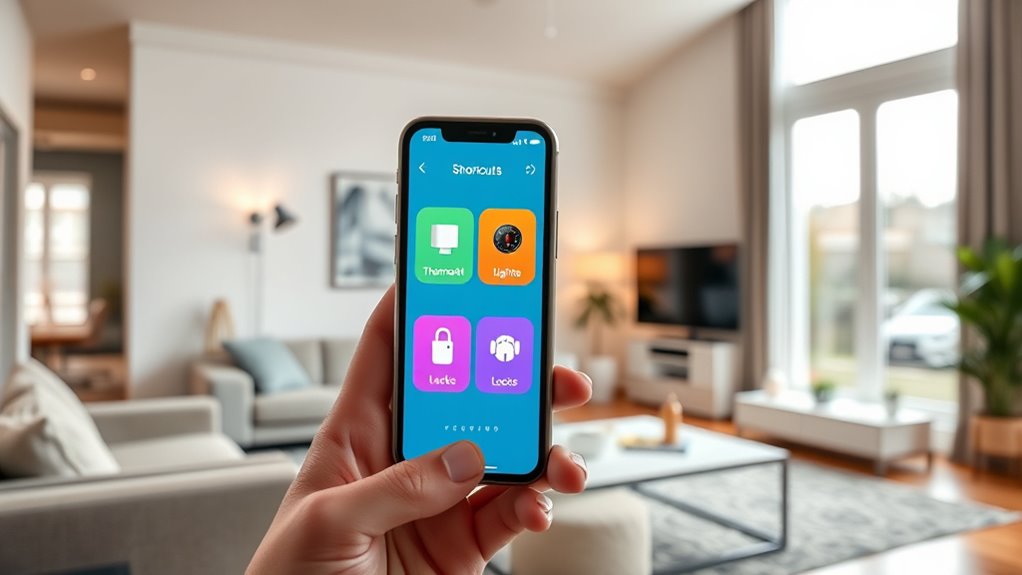
If you want to simplify your home routines, Siri Shortcuts offer a powerful way to automate everyday tasks. With just a few taps or voice commands, you can streamline common activities and make your day more efficient. To get started, open the Shortcuts app on your iPhone, which is pre-installed on most devices. Once inside, explore the Gallery for suggested shortcuts or create your own from scratch. Creating a shortcut is straightforward: tap the plus icon to start a new one, then add actions by browsing or searching through the available options. You can combine multiple steps into a single shortcut, like turning off the lights, adjusting the thermostat, and locking the doors—all with one tap or voice command.
Simplify your home routines with Siri Shortcuts—automate lights, locks, and more with just a tap or voice command.
Next, customize your shortcuts to fit your routines. For example, you could set a “Good Morning” shortcut that opens your favorite news app, reads out the weather forecast, and turns on specific lights. To make this happen, add actions for each task in sequence. You can also assign a specific voice command by tapping the settings icon within your shortcut. Say something like “Hey Siri, good morning,” and your iPhone will execute all the steps you included. This customization guarantees your shortcuts feel personal and intuitive, saving you time and effort each day.
Integrating Siri Shortcuts with your smart home devices is seamless. If your devices are compatible with Apple HomeKit, you can control them directly through your shortcuts. For example, you can create a “Movie Night” shortcut that dims the lights, lowers the blinds, and turns on your smart TV with a single command. To do this, add HomeKit actions within your shortcut, then assign a Siri phrase. When you say the phrase, your entire pre-set scene activates instantly. This integration makes managing multiple devices effortless, especially if you prefer voice commands over manual controls.
Finally, test your shortcuts to ensure they work smoothly. Run them a few times and tweak as needed. If something doesn’t behave as expected, revisit the actions and sequence. Over time, you’ll develop a collection of shortcuts tailored to your lifestyle, making daily routines quicker and more convenient. By mastering Siri Shortcuts on your iPhone, you gain a simple yet powerful tool to automate home tasks, giving you more time to focus on what truly matters. Additionally, understanding the European cloud innovation landscape can enhance your knowledge of secure and energy-efficient solutions for your connected home.
Frequently Asked Questions
Can I Create Siri Shortcuts Without Internet Access?
Yes, you can create Siri Shortcuts without internet access. Once you set up the shortcut on your iPhone, it runs locally, so you don’t need a connection to activate or use it. However, certain actions like controlling smart home devices or accessing cloud-based data require internet, so those might not work offline. But for many automation tasks, your shortcuts will function perfectly without an internet connection.
How Secure Are My Siri Shortcuts for Home Automation?
Your Siri shortcuts for home automation are quite secure, as they primarily run locally on your device, reducing exposure to external threats. Apple employs robust encryption and privacy protocols, ensuring your data stays protected. However, always keep your device updated to benefit from the latest security patches. Avoid sharing shortcuts or granting unnecessary permissions, and use strong, unique passwords for your Apple ID to enhance overall security.
Can I Share My Siri Shortcuts With Others?
Yes, you can share your Siri shortcuts with others. You simply need to tap the share icon within the Shortcuts app and choose how you’d like to send it—via AirDrop, message, or email. Keep in mind, some shortcuts might require specific apps or permissions to work correctly on another device. Sharing makes it easy to help friends or family automate tasks, enhancing their smart home experience.
Do Siri Shortcuts Work With Third-Party Smart Devices?
Yes, Siri Shortcuts work with many third-party smart devices. You can create custom commands, automate routines, and control compatible gadgets seamlessly. Whether it’s adjusting your smart lights, locking your doors, or setting the thermostat, these shortcuts make managing third-party devices simple and quick. Just make certain your devices support HomeKit or are compatible with Siri, then set up your shortcuts to enhance your smart home experience effortlessly.
How Do I Troubleshoot if a Shortcut Isn’T Working?
If your shortcut isn’t working, start by checking if your iPhone’s software is up to date. Make sure the shortcut itself is properly configured and connected to the right devices. Restart your iPhone and test the shortcut again. Verify your internet connection and ensure the devices or services involved are online and responsive. If problems persist, delete and recreate the shortcut or reset your device’s settings to resolve potential glitches.
Conclusion
With Siri Shortcuts, controlling your home feels as easy as snapping your fingers. You can automate lights, thermostats, and more with just a simple voice command. Once you set up your shortcuts, your home becomes smarter and more responsive to your needs. Think of it like having a personal assistant at your beck and call, ready to make your daily routine smoother. Start exploring Siri Shortcuts today and transform your living space into a seamless, smart sanctuary.