To prevent losing your smart home settings, regularly back up your configurations, routines, and preferences. Use built-in export features, link cloud services, or save configuration files to external drives. Schedule backups often, encrypt files for security, and store copies in multiple locations for redundancy. Keeping your backups up-to-date guarantees quick recovery after outages or device failures, so you can maintain a seamless and secure smart home environment. Continuing with these tips will help you stay protected.
Key Takeaways
- Regularly export or download configuration files from smart home platforms and apps for easy restoration.
- Use built-in backup features in hubs and devices to save settings automatically.
- Store backup files in multiple secure locations, including external drives or cloud storage.
- Schedule consistent backups to ensure recent settings are always saved and up-to-date.
- Encrypt backup files to protect sensitive device configurations from unauthorized access.

Your smart home setup is convenient, but without proper backups, a power outage, device failure, or hacking can wipe out all your customized settings. Imagine coming home after a long day, only to find your lights aren’t turning on, your thermostat is off, or your security cameras are offline. It’s frustrating and disruptive. That’s why backing up your smart home configuration should be a top priority. By doing so, you guarantee that when something goes wrong, you can restore your settings quickly and easily, minimizing downtime and maintaining your preferred environment.
Backing up your smart home ensures quick recovery from outages, failures, or hacks, keeping your environment comfortable and secure.
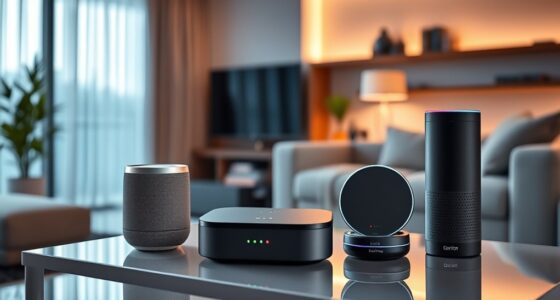
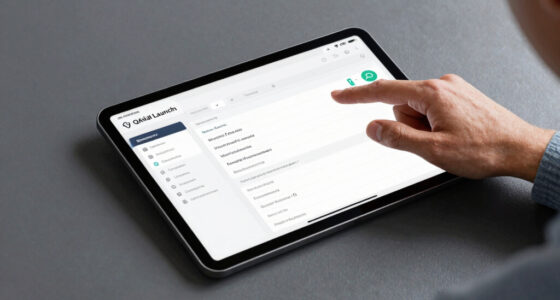
The first step is to understand what exactly needs backing up. Most smart home platforms, whether they’re from Google, Amazon, Apple, or a dedicated hub, store your device configurations, routines, automations, and user preferences. These settings are often stored locally or in the cloud, but relying solely on cloud backups isn’t enough. Cloud services can sometimes experience outages or data breaches, leaving you vulnerable. To protect yourself, look into exporting or downloading your current configurations. Many platforms offer options to save a backup file, which you can store securely on your computer or an external drive. Doing this regularly ensures that you always have a recent copy ready to restore.
Next, explore the specific backup options available for your smart home ecosystem. For example, some smart hubs allow you to export a complete profile. If you’re using a smart home app, check its settings for backup or export features. For voice assistants like Alexa or Google Assistant, link your account to a cloud service that automatically saves your preferences, but also see if an export option exists. When available, take advantage of these tools to create extensive backups. If your devices support firmware or configuration snapshots, make use of those features as well. Keeping multiple copies in different locations adds an extra layer of security in case one backup becomes corrupted or lost. Additionally, consider integrating AI-powered device management tools that can help monitor and optimize your backups for better reliability.
Finally, don’t forget to schedule regular backups. Automation can help here—set reminders or automate the export process if possible. This way, you’re not relying on memory or manual effort, and your backups stay up-to-date. Store these files securely, ideally encrypted, to prevent unauthorized access. Remember, a backup isn’t just for equipment failure; it’s also a safeguard against hacking or accidental misconfigurations. Having a recent, reliable backup means you can restore your smart home setup swiftly, without losing your personalized settings and routines, keeping your environment comfortable, secure, and exactly how you want it.
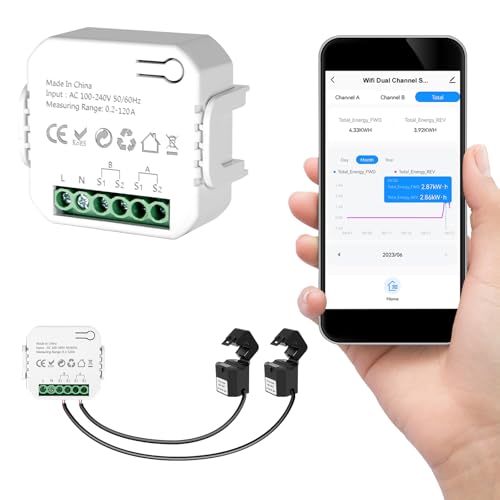
Smart Home Energy Monitor 2×120A, Dual-Channel Real-Time Electricity Usage Monitoring for Household Power, WiFi Energy Meter with App Control, Compatible with Tuya/Smart Life
【Dual-Channel Energy Monitoring】 This smart home energy monitor features two independent high-capacity sensing channels, allowing you to track…
As an affiliate, we earn on qualifying purchases.
As an affiliate, we earn on qualifying purchases.
Frequently Asked Questions
How Often Should I Back up My Smart Home Settings?
You should back up your smart home settings at least once a month to guarantee you don’t lose any important configurations. If you frequently make changes or add new devices, consider backing up weekly or after significant updates. Regular backups save you time and frustration if something goes wrong. Set reminders to keep your backups current, especially before performing major system updates or troubleshooting.
Can I Automate Backups for My Smart Home Configurations?
Yes, you can automate backups for your smart home configurations. Most smart home platforms and devices offer scheduling options or integrations with automation tools like IFTTT, SmartThings, or Home Assistant. You just need to set up regular backup routines, specify the frequency, and guarantee your settings are saved securely. This way, you won’t have to remember to back up manually, and your configurations stay safe even if something goes wrong.
What Devices or Platforms Support Automatic Backups?
Think of your smart home as your digital fortress—many platforms support automatic backups to keep it secure. Devices like Samsung SmartThings, Google Home, and Apple HomeKit offer built-in options to regularly save your settings. Some, like SmartThings, automate backups via cloud services. Check your device’s app settings or platform documentation to enable scheduled backups, ensuring your configurations stay safe even if tech throws a curveball.
How Do I Restore Settings From a Backup?
To restore your settings from a backup, first open your smart home app and navigate to the settings or backup section. Select the restore option, then choose your backup file. Confirm the action, and your devices will automatically reconfigure with the saved settings. Make sure your backup is recent, and verify your devices are connected to Wi-Fi for a smooth restoration process.
Are There Security Risks in Backing up My Smart Home Data?
Yes, there are security risks when backing up your smart home data. If your backups aren’t encrypted or stored securely, hackers could access sensitive information or gain control of your devices. To minimize risks, make sure your backups are encrypted, stored in secure locations, and only accessible to trusted users. Regularly update your security settings and monitor access logs to keep your smart home safe from unauthorized intrusion.
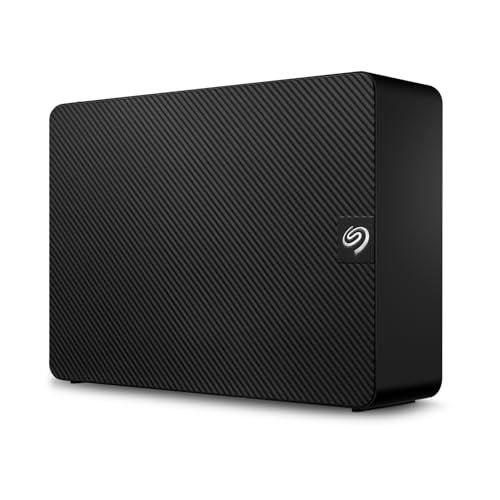
Seagate Expansion 22TB External Hard Drive HDD – USB 3.0, with Rescue Data Recovery Services (STKP22000400)
Easy-to-use desktop hard drive—simply plug in the power adapter and USB cable
As an affiliate, we earn on qualifying purchases.
As an affiliate, we earn on qualifying purchases.
Conclusion
Don’t wait until it’s too late—back up your smart home settings today. Protect your preferences, preserve your convenience, and prevent frustration. Keep your devices running smoothly, keep your routines uninterrupted, and keep your peace of mind intact. Because your smart home should work for you, not against you. Take action now, secure your settings now, and enjoy the confidence that comes with knowing your smart home is safe, simple, and always under your control.

EF ECOFLOW Portable Power Station DELTA 3 Max, 2048Wh LiFePO4 Battery, Solar Generator (Solar Panel Optional), 3400W X-Boost Output, Ultra-Fast 0-80% Charging in 1.13 Hr, Home Backup & RV Camping
Ultra-Fast Charging, 0–80% in Just 1.13 Hours – Thanks to EcoFlow’s advanced X-Stream technology, DELTA 3 Max can…
As an affiliate, we earn on qualifying purchases.
As an affiliate, we earn on qualifying purchases.

Building Smart Home Automation Solutions with Home Assistant: Configure, integrate, and manage hardware and software systems to automate your home
As an affiliate, we earn on qualifying purchases.
As an affiliate, we earn on qualifying purchases.