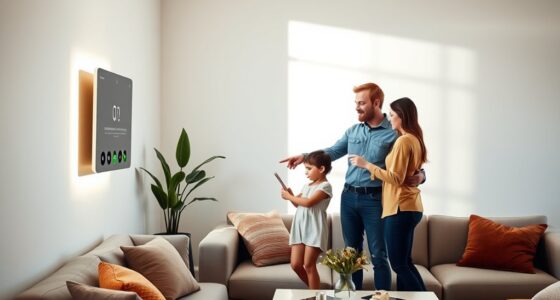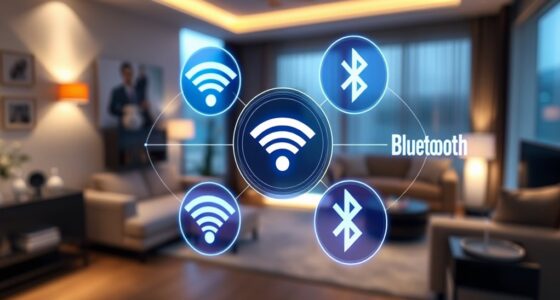
To use smart home widgets on your phone for quick controls, first make certain your device supports widgets and your smart home apps offer this feature. Access the widget menu by long-pressing your home screen (Android) or using “Edit Widgets” (iOS), then select and add your preferred smart home widget. Customize it to control your devices directly, like turning lights on or adjusting the thermostat, making everyday management faster and easier. Keep exploring to learn how to get the most out of these handy tools.
Key Takeaways
- Verify your phone’s OS supports home screen widgets and that your smart home app offers widget options.
- Add the widget by long-pressing the home screen (Android) or using “Edit Widgets” (iOS).
- Place and customize the widget for quick access to your preferred devices or scenes.
- Tap the widget to toggle devices on/off or adjust settings like brightness or temperature.
- Update or refresh widgets if device statuses don’t display correctly for seamless control.

Smart home widgets make controlling your devices faster and more convenient. Instead of opening multiple apps or browsing through menus, you can instantly access your smart devices right from your phone’s home screen. This quick access saves you time and makes managing your smart home simpler. To get started, verify your phone’s operating system supports home screen widgets—most modern Android and iOS devices do. Then, check if your smart home app offers widget options; many popular apps like Google Home, Apple Home, or Samsung SmartThings include widget support.
Smart home widgets provide quick, convenient access to your devices right from your home screen.
Once you confirm your app supports widgets, add them to your home screen. On Android, you typically press and hold an empty space on your home screen, then tap “Widgets” to browse available options. Find your smart home app’s widget, tap, and drag it to your preferred spot. On iOS, you add widgets through the “Edit Widgets” feature by long-pressing on the home screen, tapping the ‘+’ icon, and selecting your smart home app from the list. After placing the widget, you might need to customize it by selecting specific devices or scenes you want quick access to.
Now that your widget is set up, you can control your devices with just a tap. For example, you could turn off the lights, adjust your thermostat, or lock your door without opening the full app. Many widgets also support toggles or sliders, allowing you to change brightness, volume, or temperature directly from the widget itself. This immediate control helps you respond quickly to changing situations—like turning on the hallway light when you walk into a room or lowering the thermostat before going to bed.
Keep in mind that some widgets are more dynamic than others. They update in real time or at scheduled intervals, so you always see the latest status of your devices. If you notice your widget isn’t updating correctly, try refreshing it or re-adding it. Also, explore customizing your widget’s appearance and options to suit your preferences. Some apps let you select favorite devices or scenes, making your control panel more streamlined. Additionally, understanding smart home automation can help you create routines that automatically adjust devices based on time or activity, further enhancing your control.
Using smart home widgets on your phone transforms how you manage your devices. It makes controlling lights, thermostats, locks, and more quick and effortless. By setting up and customizing your widgets, you can enjoy instant access to your smart home from your home screen, making your daily routines more seamless and efficient.
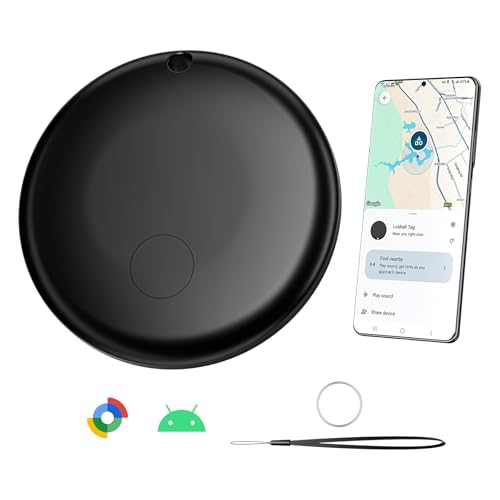
Smart Air Tag Tracker for Android, Google Android Tag Tracker Work with Google Find My Device (Find Hub), Key Finder/Luggage Tracker/Item Locator, 1 Pack Black
📍【Work with Google Find Hub APP 】Google's officially supported location tracker that works with the Find My Device…
As an affiliate, we earn on qualifying purchases.
As an affiliate, we earn on qualifying purchases.
Frequently Asked Questions
Can I Customize Widget Layouts on My Home Screen?
Yes, you can customize widget layouts on your home screen. Most smartphones let you add, move, and resize widgets easily. Tap and hold a widget or an empty space, then select “Edit” or “Add Widget” to customize its size or position. You can also organize multiple widgets into folders or stacks for a cleaner look. Experiment with different arrangements until you find a layout that works best for your smart home controls.
Do Smart Home Widgets Drain My Phone Battery Quickly?
Smart home widgets generally don’t drain your phone battery quickly if you use them wisely. They update only when you open them or at scheduled intervals, which conserves power. However, if you have many widgets running constantly or your devices are always connected, battery life might decrease faster. To minimize drain, limit widget use to essential controls and turn off unnecessary updates when not needed.
Are Smart Home Widgets Compatible With All Smartphone Brands?
Most smart home widgets are compatible with popular smartphone brands like Apple and Android, but compatibility can vary. You might worry about compatibility issues, but generally, if your device runs the latest OS versions, you’ll be able to use these widgets seamlessly. Check your device’s app store or manufacturer’s website for specific compatibility details. Updating your system guarantees you get the most out of your smart home controls.
How Secure Are Smart Home Widgets From Hacking Attempts?
Smart home widgets are generally secure if you keep your device and apps updated. They use encryption and authentication to protect your data, but no system is completely hack-proof. You should enable two-factor authentication, use strong passwords, and avoid public Wi-Fi networks when controlling your smart devices. Regularly review app permissions and security settings to stay ahead of potential hacking attempts and keep your smart home safe.
Can I Control Multiple Smart Devices With a Single Widget?
Imagine your smart home widget as a control panel for a spaceship cockpit. Yes, you can control multiple smart devices with a single widget. You simply customize it to include controls for your lights, thermostat, and security cameras. This streamlined setup lets you manage everything at once, saving you time and effort. Just tap the widget, and your entire smart home fleet responds, making your life smoother and more efficient.

MOES WiFi Smart IR Remote Controller Smart Home Infrared Universal Remote Blaster,One for All Control AC TV DVD CD AUD SAT etc,Compatible with Alexa and Google Assistant,No Hub Required
1.【Note】MOES SMART IR blaster come with UL certified adapter and USB 2.0 cable,you may plug wherever there is…
As an affiliate, we earn on qualifying purchases.
As an affiliate, we earn on qualifying purchases.
Conclusion
Think of your phone as a control tower, guiding your smart home with a simple tap. These widgets are like keys to a well-orchestrated symphony, turning chaos into harmony at your fingertips. With a quick glance, you command the lights, temperature, and more—your home responds like a loyal companion. Embrace these tools, and watch your digital house become a seamless part of your daily rhythm, symbolizing effortless convenience in a busy world.

GHome Smart Plug, WiFi Smart Plugs Work with Alexa and Google Home, Smart Outlet Timer with APP Remote Control, 2.4GHz Wi-Fi Only, No Hub Required, ETL FCC Listed
Stability Upgrade Quick Connection:Supports Bluetooth or WiFi connection.The improved WiFi technology let you quick connection and stay stable,no…
As an affiliate, we earn on qualifying purchases.
As an affiliate, we earn on qualifying purchases.

Linkind Matter Smart Light Bulb, WiFi Smart Bulbs with Remote, Smart Bulb Work with Apple Home, Alexa, Google Home, SmartThings, RGBTW Color Changing Bulbs Music Sync, 2.4Ghz A19 E26 60W 800LM 4 Pack
【Powerful Smart Matter】With Matter, Skip the step of downloading and registering multiple manufacturers' apps every time you buy…
As an affiliate, we earn on qualifying purchases.
As an affiliate, we earn on qualifying purchases.