
To grow your smart home smoothly, start by evaluating your current setup and setting clear goals. Check device compatibility with your ecosystem and choose new devices that complement your routines. Prepare by updating your Wi-Fi and following installation instructions carefully. Connect your devices, customize settings, and test thoroughly. Regular updates and automation help optimize performance. If you keep these tips in mind, you’ll enhance your smart home experience effortlessly and discover even more ways to improve your system.
Key Takeaways
- Verify compatibility with your current ecosystem before purchasing new devices.
- Read and follow manufacturer instructions carefully during installation.
- Ensure your Wi-Fi network is strong enough to support additional devices.
- Integrate new devices into your system and customize automation settings.
- Regularly update firmware and software to maintain security and optimal performance.
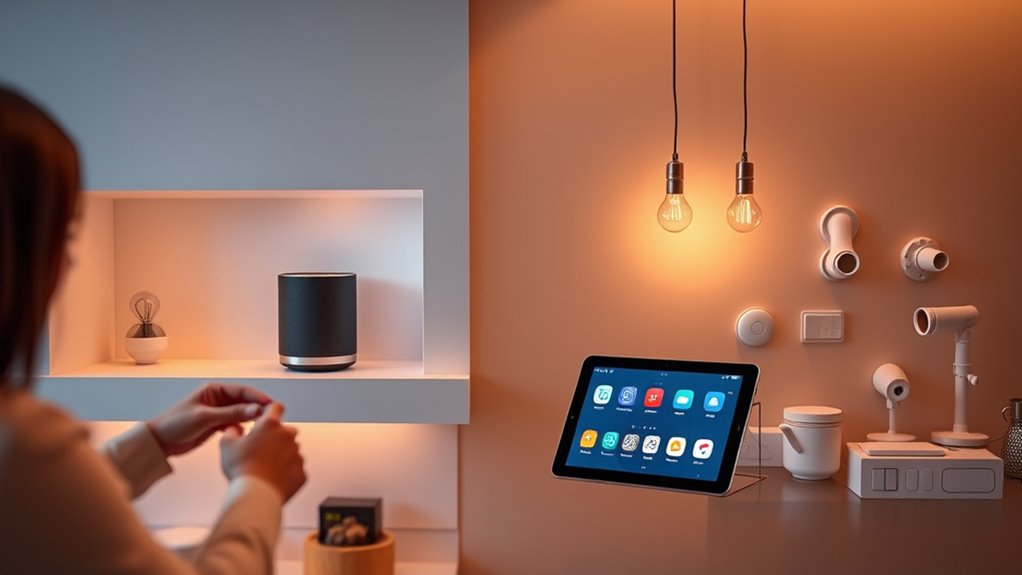
Are you ready to expand your smart home and enhance its convenience? Growing your smart home can be exciting, but it’s essential to do it smoothly to avoid frustration or compatibility issues. The first step is to evaluate your current setup and identify what’s missing or could improve your daily routines. Think about areas where automation could save you time or make life easier—perhaps adding smart lighting, thermostats, or security cameras. Setting clear goals helps you choose the right devices that will complement your existing system.
Evaluate your current setup and set clear goals to smoothly expand your smart home.
Before purchasing new devices, check their compatibility with your current smart home ecosystem. If you’re using a hub or a specific voice assistant like Alexa, Google Assistant, or Apple HomeKit, verify that the new device works seamlessly within that framework. Manufacturers often specify compatibility on their packaging or websites, so spending a little extra time here can save you headaches later. Also, consider the device’s features—does it offer the automation options you need? Is it energy-efficient? Will it integrate well with other devices you already own? These questions help guarantee your new addition enhances rather than complicates your setup.
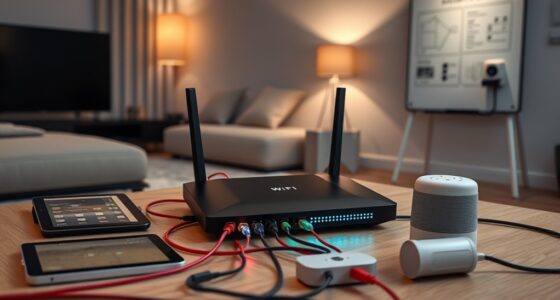
Once you’ve selected a device, prepare for installation by reading the manufacturer’s instructions thoroughly. Many smart devices are designed for easy installation, often just requiring a quick setup through a dedicated app. Make sure your Wi-Fi network is robust enough to support additional devices—slow or unstable connections can hinder performance. It’s also wise to update your router firmware if needed, ensuring your network runs smoothly and securely.
When installing your new device, place it strategically for maximum performance. For example, cameras should have a clear view of the area you want to monitor, and smart lights should be positioned to illuminate the intended space effectively. During setup, follow the app instructions carefully, connecting the device to your Wi-Fi and integrating it into your existing ecosystem. Many apps guide you through the process step by step, making it straightforward. Additionally, understanding local automation options can help you create routines that improve your daily experience.
After installation, spend a few minutes exploring the device’s features and automation options. Customize settings like schedules, triggers, and notifications to tailor the device’s operation to your needs. Test it thoroughly to confirm everything functions correctly and that it interacts well with other devices. Regularly updating device firmware and app software keeps everything secure and running smoothly, ensuring your smart home continues to grow seamlessly. With deliberate planning and attention to detail, you’ll expand your smart home confidently, enjoying the convenience, security, and efficiency that come with a well-integrated system.
As an affiliate, we earn on qualifying purchases.
Frequently Asked Questions
How Do I Ensure New Devices Are Compatible With My Existing Setup?
You should verify the device’s compatibility with your current smart home system before purchasing. Look for products that support the same protocols, like Zigbee, Z-Wave, or Wi-Fi. Read the manufacturer’s specifications and reviews to ensure seamless integration. Updating your hub’s firmware can also help improve compatibility. When in doubt, consult the device’s documentation or contact customer support to confirm it works with your existing setup.
What Security Measures Should I Take When Adding New Smart Devices?
You should encrypt your Wi-Fi, update device firmware regularly, and use strong, unique passwords for each device. Enable two-factor authentication when available, disable unnecessary features, and keep your network private. Regularly review connected devices, set up guest networks for visitors, and monitor device activity for suspicious behavior. By taking these steps, you protect your smart home from hacking, unauthorized access, and data breaches, ensuring a safer, more secure environment.
Can I Control All Devices With a Single App or Voice Command?
Yes, you can control all your smart devices with a single app or voice command. Many smart home platforms like Alexa, Google Home, or Apple HomeKit unify device management, making it easy to operate everything seamlessly. You just need to make certain all your devices are compatible with your chosen platform. Once set up, you can use voice commands or an app to control lights, thermostats, security cameras, and more effortlessly.
How Do I Troubleshoot Connectivity Issues With New Devices?
When you face connectivity issues with new devices, first guarantee they’re within range of your Wi-Fi or hub. Restart the device and your router to refresh the connection. Check for firmware updates and reattempt pairing. Disable and re-enable Wi-Fi on your device if needed. If problems persist, move the device closer to your router or hub, and verify your network isn’t overloaded. These steps usually resolve most connectivity hiccups.
Is It Necessary to Update Firmware When Adding New Devices?
Yes, updating firmware is necessary when adding new devices. For example, imagine you add a smart thermostat that runs on outdated firmware; it might not sync properly with your existing system or have security vulnerabilities. By updating the firmware first, you guarantee compatibility, improve performance, and fix bugs. Always check for updates before integrating new devices to prevent potential issues and maximize their functionality within your smart home.
smart home hub for Alexa Google Home Apple
As an affiliate, we earn on qualifying purchases.
As an affiliate, we earn on qualifying purchases.
Conclusion
As you expand your smart home, remember that seamless integration makes all the difference. Keep compatibility in mind, and don’t rush the process—test each device to guarantee everything works smoothly. With a little patience, your smart home will become more intuitive and efficient. Are you ready to take the next step and turn your space into the ultimate connected haven? Embrace the journey, and enjoy the smarter, simpler living you’re creating.

TP-Link AC1200 WiFi Extender – 1.2Gbps Home Signal Booster, Dual Band 5GHz/2.4GHz, Up to 1600 Sq.ft and 32 Devices, EasyMesh Compatible, One Ethernet Port (RE315)
- Enhanced Wi-Fi Coverage: Eliminates dead zones with strong signals
- Dual Band Speed: Supports 867 Mbps on 5GHz and 300 Mbps on 2.4GHz
- Wide Coverage Area: Covers up to 1500 sq.ft with 2 antennas
As an affiliate, we earn on qualifying purchases.
As an affiliate, we earn on qualifying purchases.

Smart Home Starter Kit | Includes Echo Hub, Amazon Smart Plug and 4 Amazon Basics Smart Bulbs, Designed for Alexa+
- Easy smart home setup: Quick guided setup for beginners
- Simple installation: Unbox, plug in, and tap to start
- Versatile Echo Hub: Connects with thousands of smart devices
As an affiliate, we earn on qualifying purchases.
As an affiliate, we earn on qualifying purchases.