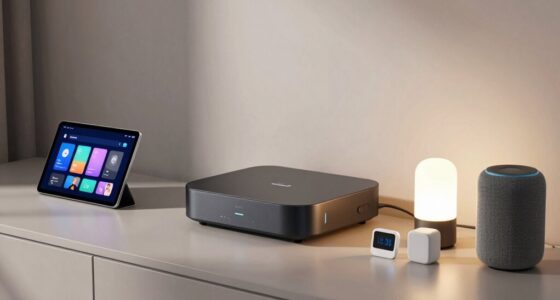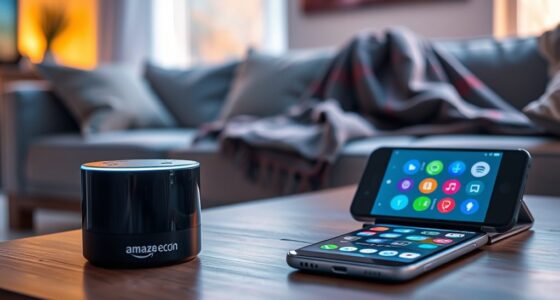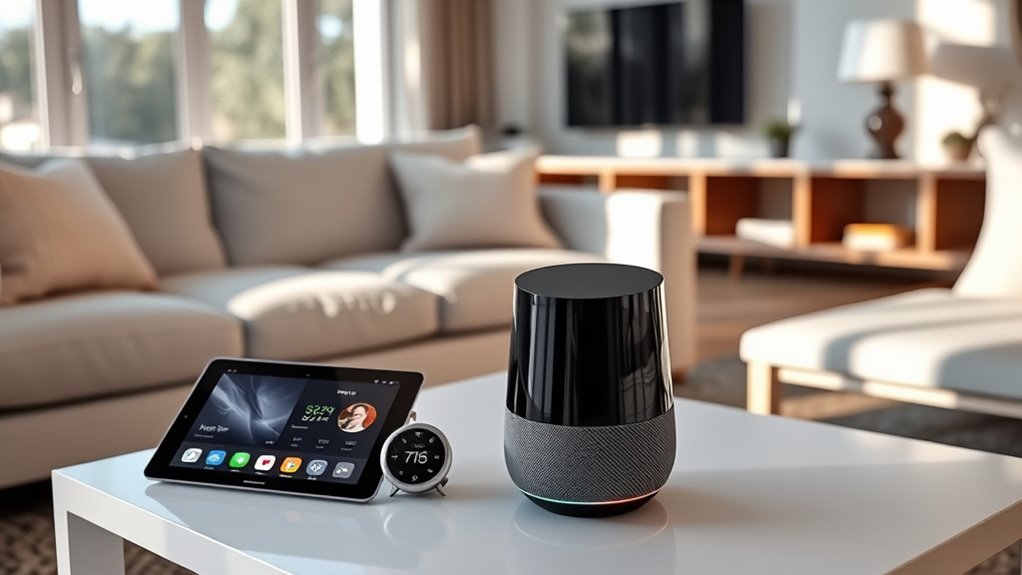

To set up your Google-centric smart home, start by plugging in your Google Home device and downloading the Google Home app. Follow the app prompts to connect the device to Wi-Fi and sign in with your Google account. Link your favorite music and smart devices, then organize them into rooms and create routines. Test everything with voice commands and keep the app updated. A smooth setup helps you maximize your smart home—keep going to discover more tips.

Get home appliances delivered free with Prime
- Fast, free delivery on millions of items
- Prime Video, Amazon Music and more included
- Member-only deals all year
Key Takeaways
- Download and set up the Google Home app, then connect your device to Wi-Fi following on-screen instructions.
- Sign in with your Google account and link preferred services like music and smart devices.
- Assign devices to specific rooms for organized control and easier voice commands.
- Create routines to automate daily tasks and customize your smart home experience.
- Test your setup by issuing commands and ensure all devices respond accurately for optimal use.

Google Home is a smart speaker that lets you control your connected devices, play music, and get information using simple voice commands. It’s a central hub designed to make your daily routines easier and more efficient. To set it up, you’ll want to start by plugging in your device and downloading the Google Home app on your smartphone or tablet. The app guides you through the entire process, making setup straightforward even if you’re new to smart home technology. Once your device powers on, open the app and follow the prompts to connect Google Home to your Wi-Fi network. You’ll need to select your home Wi-Fi and enter your password, guaranteeing a stable connection so your commands are responsive and reliable.
Google Home setup is simple: plug in, connect to Wi-Fi, and follow the app prompts.
Next, the app will prompt you to link your Google account. This step is essential because it allows Google Home to access your personalized information, such as your calendar, contacts, and preferred music services. After signing in, you can choose which services you want connected, like Spotify, YouTube Music, or Pandora, making it easy to play your favorite tunes with just your voice. If you own other smart devices—lights, thermostats, smart plugs—you can add them now. The app typically detects compatible devices on your network automatically, or you can manually add them by following the instructions within the app. Make sure each device is powered on and connected to Wi-Fi before attempting to add it.
Once everything is linked, you can start customizing your experience. Assign rooms or zones within the app to organize your devices, which helps when giving voice commands like “Hey Google, turn on the living room lights.” You can also set routines to automate daily tasks, such as turning on your coffee maker or adjusting your thermostat in the morning. To guarantee your voice commands are recognized accurately, you might want to set up voice match profiles. This feature allows Google Home to identify who’s speaking, tailoring responses and actions accordingly. Additionally, integrating smart home technology can enhance automation and control across your devices for a more seamless experience.
Testing your setup is the final step—say a few commands like “Hey Google, what’s the weather today?” or “Play some jazz music.” If everything’s working correctly, your Google Home will respond promptly and carry out the task. Remember, the more devices you add and customize, the more integrated your smart home becomes. Keep your app updated for new features and improvements. With a little initial effort, you’ll soon enjoy a seamless, voice-controlled environment that simplifies your daily life and puts your connected devices at your fingertips—or rather, at your voice.
As an affiliate, we earn on qualifying purchases.
Frequently Asked Questions
How Secure Is My Data With Google Home Devices?
Your data with Google Home devices is generally secure, but you should be aware of potential risks. Google encrypts your data during transmission and offers settings to control privacy. You can review and delete your voice recordings, and manage data sharing options. However, always stay cautious by using strong, unique passwords and enabling two-factor authentication. Regularly update your device software to benefit from the latest security enhancements.
Can Google Home Control Non-Google Smart Devices?
Yes, Google Home can control non-Google smart devices if they are compatible with Google Assistant. You just need to make certain the device supports Google Assistant integration and connect it through the Google Home app. Once linked, you can control these devices using voice commands or the app, making it easy to manage your smart home ecosystem regardless of the brand. Compatibility expands your options and enhances your smart home experience.
How Do I Troubleshoot Connectivity Issues?
To troubleshoot connectivity issues, start by checking your Wi-Fi network to make certain it’s stable and working properly. Restart your Google Home device and your router to refresh the connection. Make sure your device is within range and update the Google Home app. If problems persist, remove and re-add the device in the app, and verify your network settings. These steps usually resolve most connectivity problems quickly.
Is It Possible to Customize Voice Recognition?
Think of your Google Home as a loyal companion learning your voice like a secret handshake. Yes, you can customize voice recognition, training it to better understand your unique voice. Simply go to your Google Assistant settings, select “Voice Match,” and follow the prompts to teach it your voice. This way, your device responds more accurately, making interactions smoother and more personal—like having a trusted friend who knows you well.
What Privacy Settings Are Available for Google Home?
You can customize your privacy settings on Google Home by accessing the Google Home app. You can manage activity controls, delete voice recordings, and turn off personalized results. Additionally, you can disable voice match, restrict data sharing, or pause web & app activity. Regularly reviewing these options helps you control what data Google collects, ensuring your privacy remains a priority while using your smart home devices.
Google Home compatible smart devices
As an affiliate, we earn on qualifying purchases.
As an affiliate, we earn on qualifying purchases.
Conclusion
Now that your Google Home is set up, you hold the key to a world of seamless living. Like a lighthouse guiding ships through darkness, your smart home becomes a beacon of convenience and control. Embrace the harmony of voice commands and smart devices, turning your space into a sanctuary of innovation. With each command, you’re not just managing gadgets—you’re shaping a future where technology and comfort shine together, lighting your way forward.
As an affiliate, we earn on qualifying purchases.
As an affiliate, we earn on qualifying purchases.
Halloween Picks
halloween
As an affiliate, we earn on qualifying purchases.