TL;DR
Smart home security cameras let you view your home remotely, receive activity alerts, and review recordings. Choose cameras for specific entry points, check how they store video and connect to your network, and secure your account before installation. More resolution and more cameras do not automatically mean better coverage.
A camera can send you a sharp alert of a delivery at your door, then turn the same corner of your home into a privacy blind spot if you aim it carelessly. Smart home security cameras help you check on your home from a phone, get alerts about activity, and review recorded footage. They range from compact indoor cameras to weatherproof models with batteries, spotlights, and sirens.

Get home appliances delivered free with Prime
- Fast, free delivery on millions of items
- Prime Video, Amazon Music and more included
- Member-only deals all year
This guide explains what camera features mean in daily use, how to choose recording and power options, and how to place devices without recording more than you intend. You’ll also get practical steps for protecting your account and checking compatibility before you buy. The key facts for a sensible setup are simple: pick the problem you want to solve, confirm the camera can do it, and secure it before you mount it.
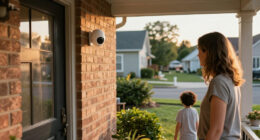
A camera is a little like a porch light: it works best when it covers a real approach, not when you add one to every corner. For example, if packages disappear from your front step, a well-placed camera that captures the door and walkway may help more than three cameras pointed at empty walls.
Choose a camera for a specific entrance or activity, then test its view and Wi-Fi signal at the planned location.
Compare storage by outage behavior, remote access, video history, and subscription cost; local recording may continue when internet service drops.
Judge image quality by lens, sensor, lighting, placement, and compression as well as resolution.
Use a unique password, multifactor authentication, current software, and careful sharing settings to protect camera access.
Check exact smart home features and local recording rules before buying or enabling audio.
What Smart Home Security Cameras Actually Do for You
Smart home security cameras connect video monitoring with a phone app so you can check a live view, receive activity alerts, and review saved clips. Many models detect movement, while some can label activity as a person, pet, vehicle, or package. Those labels help sort alerts, but they can be wrong, especially when shadows, headlights, or branches move through the frame.
Think of a camera as a remote peephole with a memory. If you’re at work and a courier leaves a box, an alert can help you check whether the package is still there. If a cat wanders through the living room, a pet detection feature may label the event differently from a person walking past. The benefit depends on the camera’s view, settings, and connection.
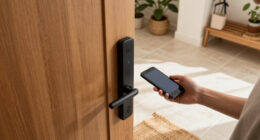
Some cameras connect to smart displays, lights, locks, voice assistants, or automation platforms. A camera might show a live feed on a kitchen display or switch on a porch light when it detects motion. Compatibility varies by model, region, subscription, and platform; a listing that says “works with” a service may support only some features.
A camera can help you see and document activity, but it is not automatically an alarm service. It may not contact emergency responders, include door sensors, or keep recording during a power or network outage. If you need those protections, compare the camera’s role with a dedicated alarm system instead of expecting the camera to do every job.
Products Worth Considering

Apple Watch Series 8 GPS 41mm Smartwatch with Midnight Aluminum Case and Midnight Sport Band (S/M)

Samsung Odyssey G55C 32-Inch QHD 1000R Curved Gaming Monitor

Logitech MX Master 4 Ergonomic Wireless Mouse with Haptic Feedback, Graphite
As an affiliate, we earn on qualifying purchases.
Which Camera Features Make the Biggest Difference?
Resolution helps show detail, but it does not tell the whole story. Many current cameras offer 1080p or higher, yet the image also depends on the lens, sensor, lighting, placement, and compression. A camera mounted too far from a doorway can produce a high-resolution picture that still fails to show a face clearly.
Night vision changes what you can see after dark. Infrared LEDs capture monochrome footage in darkness, while some cameras use a spotlight to record in color. That spotlight can discourage someone from approaching, but it may shine into a bedroom window or annoy a neighbor if you aim it poorly.
Motion detection ranges from simple movement alerts to labels for people, pets, vehicles, or packages. A bush waving in a storm can trigger basic detection; a more selective setting may filter some false alerts. Still, treat AI labels as helpful clues, not proof. If a camera calls your child’s coat a person at midnight, review the actual clip before acting.
Here’s a practical feature check when comparing two models for a front door:
| Feature | What it helps with | What to check |
|---|---|---|
| 1080p or higher video | Seeing faces, parcels, and movement | Night image quality, field of view, and compression |
| Person or package alerts | Filtering routine movement | Accuracy, paid plan requirements, and alert controls |
| Infrared or spotlight night view | Monitoring a dark entry | Glare, light spill, and whether color footage matters |
| Local or cloud recording | Reviewing events later | Retention period, remote access, and fees |
Pick the feature that fixes a real problem. If the porch is dark, better low-light performance may matter more than a higher resolution number.
How to Pick Storage and Power That Fit Your Routine
Your storage choice determines where recordings go and how long you can review them. Some cameras save clips to a memory card, home hub, or network video recorder; others upload video to a cloud service. Local storage can avoid monthly fees, while cloud plans may offer remote access, longer video history, or event summaries. Read the current plan terms because features and prices change.
Imagine your internet goes out during a storm. A camera with local recording may keep saving footage to its card, even though you can’t check the live feed or receive alerts until the connection returns. A cloud-only camera may have no saved clip from that gap. Ask the manufacturer whether recording continues without Wi-Fi and whether you can retrieve the footage later.
Power creates a similar tradeoff. Plug-in cameras need an outlet but avoid routine charging. Battery models are easier to place where wiring is inconvenient, yet frequent activity can drain them faster and some record mainly when motion occurs. Solar-assisted models may reduce charging, but performance depends on sunlight and placement.
Use this short process before choosing a model:
- Decide how long you need footage. If you only need to check a delivery the same day, short event clips may be enough.
- Choose a recording location. Compare card, hub, recorder, and cloud options for outage behavior, remote access, and recurring cost.
- Check power and network reach. Confirm there’s an outlet or a practical charging plan, and test Wi-Fi where you’ll mount the device.
- Estimate your camera count. Several high-resolution streams can put a noticeable load on your home network, especially when they upload footage at once.
For example, a battery camera on a rarely used side gate may need few charges, while one facing a busy sidewalk may wake constantly. Placement and activity can matter as much as the battery’s advertised capacity.
Where to Place Cameras for Useful Coverage and Privacy
Place cameras where they can show an entrance or approach clearly while keeping private spaces out of view. A front door, driveway, garage entry, or path to a side gate often gives more useful coverage than a high, wide shot of an entire yard. Position and angle affect what the camera records as much as its specifications do.
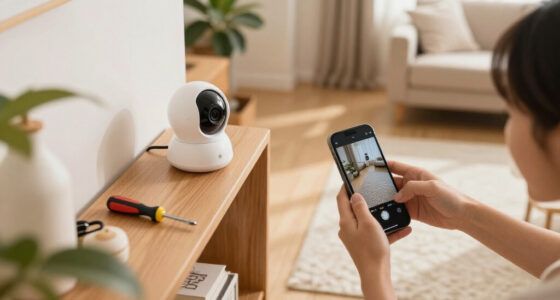
Before mounting anything, use your phone to check the view from the proposed location. Open and close the door, walk up the path, and look for glare from a window or porch light. A camera aimed straight at a bright lamp may wash out faces, while a low angle can leave a visitor’s face hidden under a cap brim.
Privacy deserves extra care indoors. A camera in a shared living area can monitor a room while you’re away, but it may also record family conversations and daily routines. If an indoor camera is useful, aim it at an entry or use a privacy shutter or schedule when people are home. Tell household members and guests about recording where appropriate.
Keep the view away from neighbors’ windows and other private spaces. Video and audio recording rules depend on your location, and audio may face stricter limits than video. For instance, a door camera can capture your own doorstep while also picking up a neighbor’s conversation through a thin wall; review settings and local rules before enabling audio recording.
Outdoor models need a suitable weather rating and a location within reliable Wi-Fi range. A camera under a deep roof overhang may stay drier, but that shelter can limit its view. Test signal strength at the mounting point first, because a beautiful angle is no help if the feed drops every time the wind picks up.
How to Protect Camera Footage and Your Account
Camera privacy depends on both the maker’s practices and your account and network settings. Video can reveal when your home is empty, who visits, and what happens in private rooms. A few account habits reduce avoidable risk: use a strong, unique password, turn on multifactor authentication, install updates, and review who can access shared footage.
Start with the account, not the camera mount. If you reuse the same password from an old shopping site, a data breach there could put your camera login at risk. A password manager can help you create a different password, and multifactor authentication adds another check if someone learns it.
Then review the app’s sharing and retention controls. Remove old household members who no longer need access, set clip deletion periods that suit you, and check whether the manufacturer uses cloud storage or offers end-to-end encryption. Don’t assume every feature has the same privacy protections. A subscription may change where footage is stored or how long it remains available.
Secure Wi-Fi matters too. Use a strong router password, install router updates, and consider placing smart devices on a separate guest or IoT network if your router supports it. For example, if you share a camera feed with a dog sitter for a weekend, grant the narrowest access available and remove it afterward.
A camera should record the view you need, for only as long as you need it. Tight framing, limited sharing, and sensible retention settings can reduce how much private footage you collect.
These steps cannot guarantee a product is secure. Check the manufacturer’s update policy, data retention details, and sharing controls before buying, then revisit those settings every few months.
How to Build a Camera Setup You’ll Keep Using
A useful setup starts with one clear job and grows only when you find a real gap. Begin with the spot where an alert or recording would help you make a decision: perhaps the front step, a detached garage, or the door used for deliveries. More cameras do not automatically mean better coverage; they can add blind spots, unnecessary alerts, and extra network traffic.
Try a one-week routine before you add devices. Check which alerts arrive, whether clips show enough detail, and how often you dismiss notifications. If a camera flags every passing car, tighten its activity zone or lower sensitivity. If it misses the path, adjust the angle before buying another unit.
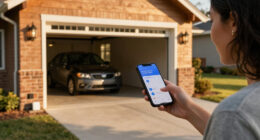
Make a quick map of your home and mark entrances, useful sight lines, outlets, and weak Wi-Fi areas. A family in a small house might choose one doorbell camera for deliveries and a second camera over the garage entrance. Someone with a long driveway might need a different lens or a camera closer to the gate, rather than another device aimed at the front porch.
Check platform support feature by feature. A product may appear in a smart home app but lack live video, alerts, or recording there. Confirm the exact model’s current compatibility list for Alexa, Google Home, Apple Home, Matter, or another system you use; product support can vary by region and software version.
Before you settle on a model, compare its total cost over a year: device price, batteries, optional cloud plans, and any hub or memory card. Then check the return period. A camera that looks perfect on paper may struggle with your home’s Wi-Fi or send too many alerts in practice.
Frequently Asked Questions
Do smart security cameras need a subscription?
No, not always. Some cameras provide live view and local recording without a monthly plan, while cloud storage, longer video history, or advanced detection may cost extra. Check the exact model’s current storage limits and plan terms before buying.
Can a camera record without Wi-Fi?
Some cameras can keep recording locally during an internet outage if they have a memory card or local hub. Remote viewing and alerts usually need a working network, so check whether recordings continue and how you can retrieve them after service returns.
Where should I place a security camera?
Start with a useful entrance or approach, such as a front door, garage entry, or side gate. Test the angle and Wi-Fi signal before mounting, avoid aiming into private areas, and check the outdoor model’s weather rating.
Are smart cameras secure and private?
They can be, but security depends on the product and your settings. Use a unique account password, enable multifactor authentication, install updates, and review retention and sharing controls. Indoor cameras need particular care because they may capture private household activity.
Will a camera work with Alexa, Google Home, Apple Home, or Matter?
Compatibility depends on the exact model and feature. Confirm whether your chosen platform supports live video, alerts, recordings, and automations; basic device discovery does not mean every feature works. Check the manufacturer’s current list for your region.
Can I use a smart camera instead of an alarm system?
A camera can help you monitor and document activity, but it may not replace an alarm service. It may lack door sensors, backup power, professional monitoring, or emergency response. Compare the protections you need before relying on a camera alone.
Conclusion
Choose your first camera for one real question: “Did someone leave a package at the door?” or “Is the garage entry still closed?” Then match the view, storage, power, and alerts to that job. Set a unique password, enable multifactor authentication, and frame the camera so it records useful activity without collecting more of your home than necessary.
A good setup is quiet when nothing is happening and clear when you need it. Like a porch light cutting through a dark evening, it should help you see the path—not shine into every window on the block.