TL;DR

Get home appliances delivered free with Prime
- Fast, free delivery on millions of items
- Prime Video, Amazon Music and more included
- Member-only deals all year
Google Pixel users should activate key emergency features like Safety Check, Emergency SOS, and crash detection to improve safety during crises. Most settings require setup before emergencies occur.
Google Pixel phones offer a suite of emergency features designed to help users stay safe during crises, but most require proactive setup. These include Safety Check, Emergency SOS, car crash detection, and alerts for severe weather or natural disasters. Ensuring these are enabled can significantly improve response times and safety outcomes during emergencies.
All Pixel devices come with the Personal Safety app, which consolidates many emergency functions. Users can schedule Safety Checks to notify trusted contacts if they do not confirm their safety during activities like running or traveling alone. The app also allows users to store medical info and emergency contacts accessible from the lock screen, enabling quick sharing of vital health data or location.
Another critical feature is Emergency SOS, which can be activated via specific button presses or gestures, automatically calling emergency services and sharing location with contacts. Users can also enable car crash detection, which uses sensors to identify severe collisions and automatically contact emergency responders, though this feature is not available in all countries and requires permission setup.
Android devices can receive emergency alerts for severe weather, natural disasters, AMBER alerts, and earthquakes (in certain U.S. states). These alerts can be customized or turned off in device settings, depending on user preference. Most of these features are default but need to be activated or configured beforehand to be effective in emergencies.
Stay Prepared: Top 7 Emergency Settings Every Google Pixel User Should Enable
Most safety tools only help after they have been configured. Set up your contacts, permissions, alerts, and automatic responses now so your Pixel can act quickly when every second matters.
Build your Pixel safety net
Menu names may differ slightly by Android version and device model. Begin in Settings → Safety & emergency or open the Personal Safety app.
Safety Check
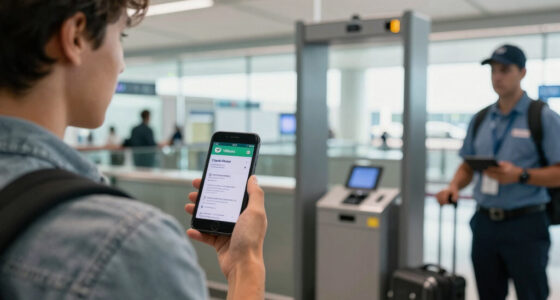
Schedule a check-in before running, hiking, commuting, or traveling alone. If you do not respond in time, your chosen contacts can be notified.
Personal Safety → Safety CheckEmergency SOS
Configure repeated power-button presses to call emergency services, alert contacts, share location, or start emergency recording where supported.
Settings → Safety & emergency → Emergency SOSCar Crash Detection
Allow your Pixel to use motion, location, and audio signals to detect a severe collision and contact responders if you cannot reply.
Personal Safety → Features → Car Crash DetectionMedical Information
Add allergies, medications, blood type, and other vital details that responders may need. Choose what can be viewed from the lock screen.
Settings → Safety & emergency → Medical informationEmergency Contacts
Select trusted people who can receive SOS alerts, Safety Check notifications, and location updates. Confirm that every phone number is current.
Settings → Safety & emergency → Emergency contactsWireless Emergency Alerts
Review severe-threat, extreme-threat, AMBER, test, and local alert preferences. Keep critical warnings enabled unless there is a compelling reason not to.
Settings → Notifications → Wireless emergency alertsCrisis and Earthquake Alerts
Enable available crisis notifications, severe-weather information, and earthquake warnings. These tools are region-dependent and may require location services, network access, and supported hardware.
Settings → Safety & emergency → Crisis alerts / Earthquake alertsWhat each feature needs
A visible switch is only part of the setup. Contacts, permissions, location access, network service, and regional support can determine whether a feature works as expected.
| Feature | User setup | Location | Regional limits |
|---|---|---|---|
| Safety Check | Required | Recommended | Low |
| Emergency SOS | Required | Recommended | Moderate |
| Crash Detection | Required | Required | High |
| Medical Information | Required | Not needed | Low |
| Emergency Contacts | Required | For sharing | Low |
| Wireless Alerts | Review defaults | Varies | Moderate |
| Crisis / Earthquake | Review settings | Required | High |
From setup to assistance
Preparedness is a chain. A weak link—such as an outdated contact or denied location permission—can reduce the value of every step that follows.
Configure
Enable features, add health details, and choose trusted contacts.
Grant Access
Allow the required phone, location, sensor, microphone, and notification permissions.
Trigger
A button sequence, missed check-in, collision, or public warning starts the response.
Share
Your Pixel can call, send location, display medical details, or alert contacts.
Respond
Emergency services or trusted people receive information and act.
Learn the trigger
Review the SOS countdown and cancellation process without placing a false emergency call.
Update your profile
Recheck medications, allergies, emergency contacts, and lock-screen visibility after any change.
Review permissions
Battery optimization, location access, network service, and notification settings can affect delivery.
Powerful, but not universal
Pixel emergency features can improve response speed, but they do not replace situational awareness, local emergency guidance, or a broader personal safety plan.
“Most emergency features on Pixel phones need to be proactively set up before they can be relied upon in a crisis.”Key preparedness principle · Source summary based on Lifehacker and Google support guidance
Why Enabling Emergency Settings Is Critical for Pixel Users
Activating these emergency features can save lives by providing quick access to help, sharing critical health information, and automatically alerting authorities during severe incidents. As emergencies can happen unexpectedly, having these tools ready ensures users are better protected and responders can act swiftly. Failure to set up these options may result in missed opportunities for assistance during crises.
As an affiliate, we earn on qualifying purchases.
Background on Pixel Emergency Features and Setup Requirements
Google Pixel phones include the Personal Safety app, which consolidates emergency functions. These features have been progressively enhanced over recent years, with the latest updates emphasizing proactive setup by users. While some features like emergency alerts are enabled by default, most require manual activation, such as setting up Crash Detection or configuring emergency contacts and medical info. The availability of certain features, like crash detection, varies by country and device model, making user awareness essential.
“Most emergency features on Pixel phones need to be proactively set up before they can be relied upon in a crisis, highlighting the importance of user awareness and preparation.”
— Emily Long, freelance tech writer
personal safety app for Pixel phone
As an affiliate, we earn on qualifying purchases.
As an affiliate, we earn on qualifying purchases.
Remaining Uncertainties About Feature Availability and Effectiveness
It is not yet clear how widely users have activated these features or how effective they are in real-world emergencies. The availability of crash detection and earthquake alerts varies by country and device model, and some users may be unaware of how to enable these options. Additionally, the effectiveness of automatic alerts depends on proper permissions and network connectivity, which can be inconsistent.
car crash detection device for Android
As an affiliate, we earn on qualifying purchases.
As an affiliate, we earn on qualifying purchases.
Next Steps for Users to Maximize Emergency Preparedness
Google is expected to continue refining these safety features, possibly expanding availability and improving user prompts for setup. Users should review their emergency settings regularly, ensure permissions are granted, and test features where possible. Authorities and safety organizations may also increase awareness campaigns to encourage proactive setup of emergency tools on Pixel devices.
emergency alert system for smartphones
As an affiliate, we earn on qualifying purchases.
As an affiliate, we earn on qualifying purchases.
Key Questions
How do I activate Emergency SOS on my Pixel phone?
Go to Settings > Safety & emergency > Emergency SOS and follow prompts to enable the feature. You can set activation methods like pressing the power button multiple times or using gestures.
Can Crash Detection be enabled on all Pixel models?
No, Crash Detection is available only on certain Pixel models and in specific countries. Check your device’s settings under Personal Safety > Features to see if it’s supported and set it up accordingly.
What should I do to prepare my Pixel for emergencies?
Ensure that emergency contacts, medical info, and lock screen messages are configured. Activate features like Safety Check, Emergency SOS, crash detection, and alerts for natural disasters. Test these features periodically to confirm they work properly.
Are emergency alerts customizable on Pixel devices?
Yes, you can manage emergency alert preferences in Settings > Notifications > Wireless emergency alerts and Safety & emergency. You can choose which alerts to receive or disable them entirely.
Source: Lifehacker
Cold & flu season Picks
humidifiers
As an affiliate, we earn on qualifying purchases.