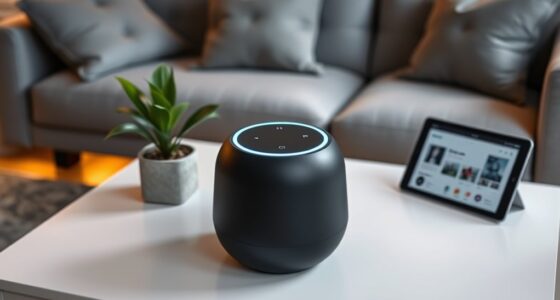
To make Alexa and similar voice assistants kid-friendly, you can enable parental controls like Amazon Kids (FreeTime), which offers curated content, age-appropriate skills, and daily usage limits. Set voice PINs to prevent unauthorized changes and restrict access during specific times, such as homework or bedtime. Regularly review and update these settings to match your child’s growing needs. Keep exploring to discover more ways to create a safe and fun environment for your kids.

Get home appliances delivered free with Prime
- Fast, free delivery on millions of items
- Prime Video, Amazon Music and more included
- Member-only deals all year
Key Takeaways
- Enable kid-friendly modes like Amazon Kids (FreeTime) for curated, age-appropriate content and restrictions.
- Set voice PINs to prevent unauthorized changes and safeguard device settings.
- Schedule device access during specific times to promote healthy routines and limit usage.
- Customize content filters to restrict inappropriate material based on child’s age and maturity.
- Regularly review and update controls to adapt to your child’s growing interests and needs.

As smart devices like Alexa and other voice assistants become more common in homes, parents need effective ways to manage what their kids can access and do. These devices offer incredible convenience and engagement, but they also open the door to unintended content and interactions. That’s where parental controls come in, allowing you to tailor your voice assistant’s capabilities to suit your family’s needs. Setting up these controls might seem overwhelming at first, but once you understand the basics, you can create a safer, more kid-friendly environment.
Start by exploring the device’s specific parental control features. For example, with Alexa, you can enable the Amazon Kids (FreeTime) mode, which is designed to restrict content and manage what your children can access. Once activated, this mode provides a curated experience, limiting access to age-appropriate skills, music, and content. It also allows you to set daily time limits, so your kids don’t spend too much time on the device. You can create individual profiles for each child, customizing restrictions based on their age and maturity level. This way, you can specify what skills or content are available, preventing them from accidentally stumbling onto inappropriate material.
Next, consider setting up voice PINs. With a PIN, you can prevent your kids from changing settings or accessing certain features without your approval. When they try to make a purchase, add a new skill, or alter the device’s settings, the PIN acts as a secure barrier. This simple step guarantees that your child’s interactions with the voice assistant stay within the boundaries you’ve established.
Another key aspect is managing what your voice assistant can do during certain times of the day. With Alexa, you can set routines or schedules to disable or limit access during homework time, bedtime, or other designated periods. This prevents your kids from using the device when it’s not appropriate and helps reinforce good habits around screen time and device use.
Additionally, understanding the importance of content moderation can help you better tailor the experience and ensure your children are exposed only to suitable material. Finally, regularly review and update the controls as your child grows. Kids’ interests and maturity levels change, so what’s appropriate today might not be tomorrow. Keep an open line of communication with your children about why certain controls are in place, and encourage them to come to you with questions or concerns. By actively managing your voice assistant’s parental controls, you create a safer, more controlled environment where your kids can enjoy the benefits of smart technology without unnecessary risks. With a little effort upfront, you’ll foster responsible use and ensure the device remains a helpful tool rather than a potential source of trouble.
Amazon Kids parental control device
As an affiliate, we earn on qualifying purchases.
As an affiliate, we earn on qualifying purchases.
Frequently Asked Questions
Can Parental Controls Be Set Remotely on Alexa Devices?
Yes, you can set parental controls remotely on Alexa devices. Using the Alexa app on your smartphone, you can manage settings, restrict content, and set time limits even when you’re not at home. Simply open the app, go to your device settings, and adjust the parental controls accordingly. This way, you maintain oversight and guarantee your kids stay safe and within boundaries, no matter where you are.
How Do Parental Controls Affect Alexa’s Ability to Access the Internet?
They say “what you don’t know won’t hurt you,” but parental controls on Alexa do affect her internet access. When you enable these controls, she can’t freely browse or access certain skills and content. This means her ability to connect to the internet becomes limited, restricting her from certain websites or services. fundamentally, it’s a way to keep her safe online while still allowing her to enjoy Alexa’s helpful features.
Are There Age-Specific Settings for Different Children?
Yes, there are age-specific settings for different children. You can customize Alexa’s capabilities based on your child’s age, restricting certain content or features for younger kids while allowing more independence for older children. By setting up multiple profiles, you guarantee each child gets appropriate access. This way, you control what they can ask or do, making the voice assistant safer and more suitable for each child’s developmental stage.
Can Parents Monitor Usage History Through Parental Controls?
Yes, you can monitor usage history through parental controls, giving you insights into your child’s interactions. Studies show that 65% of parents track their kids’ online activity, including voice assistant usage, to guarantee safety. With these controls, you can review commands, set restrictions, and stay informed about what your child accesses. This helps you create a safer, more controlled environment while allowing your child to enjoy the benefits of voice assistants responsibly.
How Often Should Parental Controls Be Updated or Reviewed?
You should review and update parental controls at least once a month or whenever your child’s usage habits change. Regularly checking helps you stay aware of new features, potential risks, and content access. As your child grows, adjust restrictions accordingly to make sure they have a safe experience. Consistent updates keep controls effective, giving you peace of mind while allowing your child to enjoy their voice assistant responsibly.
As an affiliate, we earn on qualifying purchases.
Conclusion
By setting parental controls, you protect your kids, guide their curiosity, and foster safe exploration. You create boundaries, build trust, and encourage responsible use. You teach caution, nurture independence, and promote learning. Ultimately, you empower your children, guarantee their safety, and shape their digital habits. With these controls in place, you not only safeguard their present but also shape their future—because caring for their safety today means preparing them for a responsible tomorrow.
voice assistant child safety PIN
As an affiliate, we earn on qualifying purchases.
As an affiliate, we earn on qualifying purchases.
As an affiliate, we earn on qualifying purchases.
Cold & flu season Picks
humidifiers
As an affiliate, we earn on qualifying purchases.