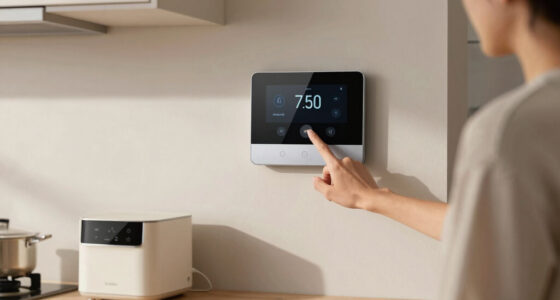
To connect your thermostat to Alexa or Google Assistant, first verify your thermostat is compatible and connected to Wi-Fi. Next, download the respective app—Alexa or Google Home—and follow the setup instructions to add your device. Link your thermostat account within the app, then enable the skill or connection for voice control. Assign your thermostat to a room for easier commands, and test it with voice prompts. For a smooth setup, keep exploring the detailed steps ahead.

Get home appliances delivered free — and shop member deals
- Fast, free delivery on millions of items
- Access to Prime Big Deal Days deals on October 6–7
- Prime Video, Amazon Music and more included
Key Takeaways
- Verify your thermostat is compatible with Alexa or Google Assistant and connect it to your Wi-Fi network following manufacturer instructions.
- Use the respective app (Alexa or Google Home) to add and discover your thermostat device.
- Link your thermostat account to Alexa or Google Assistant through skills or device setup options.
- Assign the thermostat to a specific room and test voice commands for proper control.
- Troubleshoot connectivity or account issues and ensure your smart speaker and thermostat are within range.

Connecting your thermostat to Alexa or Google Assistant allows you to control your home’s temperature hands-free and simplifies your daily routine. With voice commands, you can adjust the temperature, turn your heating or cooling on or off, and even set schedules without lifting a finger. This integration not only adds convenience but also helps you conserve energy by fine-tuning your home’s climate more efficiently. To get started, ensure that your thermostat is compatible with Alexa or Google Assistant. Most modern smart thermostats, like Nest or Ecobee, support these platforms, but it’s worth double-checking the manufacturer’s specifications.
Control your home’s temperature effortlessly with voice commands through Alexa or Google Assistant.
First, you’ll need to set up your smart thermostat according to its instructions and connect it to your Wi-Fi network. Make sure your smartphone or tablet is connected to the same Wi-Fi and that you’ve downloaded the relevant app—either the Google Home app for Google Assistant or the Alexa app for Amazon Alexa. Once your thermostat is connected to Wi-Fi and working properly, open the app and look for the option to add a new device. Follow the prompts to discover your thermostat; this usually involves selecting your device brand and entering your account credentials if needed. After successfully pairing your thermostat with the app, you’ll need to link your smart home platform account to your voice assistant.
In the Alexa app, go to the “Skills & Games” section and search for your thermostat’s skill, such as “Nest” or “Ecobee.” Enable the skill and log in with your thermostat account details to grant permission for Alexa to access your device. For Google Assistant, open the Google Home app, tap the “+” icon, select “Set up device,” then “Works with Google.” Find your thermostat’s service and link your account. Once linked, you can assign your thermostat to a specific room for easier voice control. This step helps you give commands like, “Alexa, set the living room thermostat to 72 degrees,” or “Hey Google, turn down the heat in the bedroom.”
Additionally, some thermostats support voice command integration, allowing you to create routines or schedules for more automated climate control. Now, test the setup by issuing a voice command to your device. Make sure your smart speaker is within range and connected to the internet. If everything is configured properly, your thermostat should respond immediately, adjusting the temperature as requested. If it doesn’t, double-check your app settings, account linkages, and Wi-Fi connection. Keep in mind that some advanced features, like scheduling or geofencing, may require additional setup within the thermostat’s app. Once your thermostat responds to voice commands, you’re all set to enjoy hands-free climate control, making your home more comfortable and energy-efficient with just your voice.
smart thermostat compatible with Alexa
As an affiliate, we earn on qualifying purchases.
As an affiliate, we earn on qualifying purchases.
Frequently Asked Questions
Can I Connect Multiple Thermostats to a Single Alexa or Google Account?
Yes, you can connect multiple thermostats to a single Alexa or Google account. Just make certain each thermostat is compatible with your smart home platform. You’ll need to add each device through the app, then group or label them appropriately for easy control. Once set up, you can manage all thermostats from one account, giving you convenience and better control over your home’s climate.
What Should I Do if My Thermostat Isn’t Detected During Setup?
Think of your thermostat as a shy student at the start of class—just needs a little encouragement. First, make sure your Wi-Fi is stable and your device is within range. Restart your thermostat and app, then reattempt the setup. Check for firmware updates, and reset your thermostat if necessary. If issues persist, consult the manufacturer’s support. With patience, your smart home will come together like a symphony.
Are There Any Compatibility Issues With Specific Thermostat Brands?
Yes, compatibility issues can occur with certain thermostat brands. Some models may not work seamlessly with Alexa or Google Assistant due to outdated firmware or proprietary technology. Before purchasing, check the manufacturer’s compatibility list or app to guarantee your thermostat supports voice assistant integration. If you’re unsure, consult customer reviews or contact support to confirm compatibility, so you don’t face setup problems later.
How Secure Is My Data When Connecting My Thermostat to Voice Assistants?
You might worry about your data security, but connecting your thermostat to voice assistants is generally safe if you follow best practices. Manufacturers encrypt data and regularly update security protocols to protect your information. To stay secure, use strong, unique passwords and enable two-factor authentication. Remember, while there’s some risk, the convenience of voice control often outweighs it, especially when you take proactive steps to safeguard your privacy.
Can I Control My Thermostat Remotely Without an Internet Connection?
No, you can’t control your thermostat remotely without an internet connection. Most smart thermostats rely on Wi-Fi to communicate with your smartphone or voice assistants. Without internet access, you’re limited to manual controls on the device itself. If you want remote control, make sure your thermostat stays connected to your Wi-Fi network. Some thermostats may offer offline features, but remote access typically requires an active internet connection.
As an affiliate, we earn on qualifying purchases.
Conclusion
Now that your thermostat is seamlessly linked to Alexa or Google, your smart home feels like a symphony in perfect harmony. With just a voice command, you can effortlessly adjust your climate, turning your house into a cozy haven. Think of it as having a personal assistant at your beck and call, ready to tune your comfort settings with the ease of flipping a switch. Welcome to a smarter, more comfortable way to live.
voice controlled Wi-Fi thermostat
As an affiliate, we earn on qualifying purchases.
As an affiliate, we earn on qualifying purchases.
As an affiliate, we earn on qualifying purchases.
NFL season / tailgating Picks
team gear
As an affiliate, we earn on qualifying purchases.