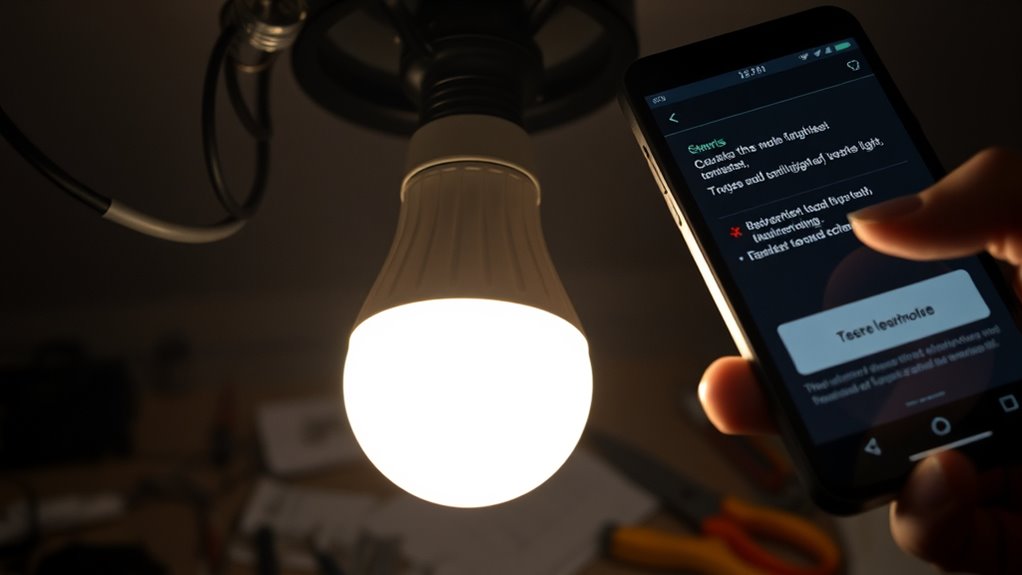

If your smart light blinks unexpectedly or goes offline, start by checking your Wi-Fi connection and ensuring your router works. Try turning the light off and on again, or reset it to factory settings if needed. Make sure the device’s firmware is up to date and that it’s within range of your Wi-Fi signal. Troubleshooting interference and power issues can help too. For step-by-step guidance on resolving these problems, keep exploring the best solutions.

Get home appliances delivered free with Prime
- Fast, free delivery on millions of items
- Prime Video, Amazon Music and more included
- Member-only deals all year
Key Takeaways
- Turn the smart light off and on again, then reset to factory settings if blinking continues.
- Verify Wi-Fi connection stability and ensure the device is within range of the router.
- Restart both the smart light and Wi-Fi router to restore connectivity.
- Update firmware via the app to fix bugs and improve performance.
- Remove and re-add the device in the app if it remains offline or unresponsive.

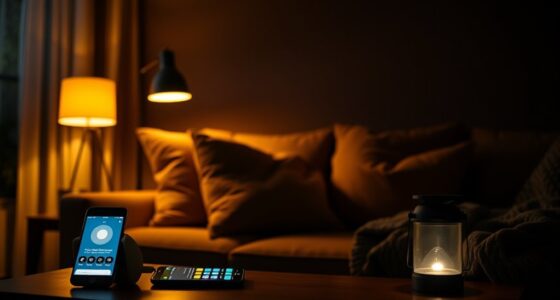
Smart lights offer convenience and modern control, but they can sometimes encounter issues that disrupt their functionality. When your smart light starts blinking unexpectedly, it’s usually a sign that something isn’t quite right with the connection or the device itself. Blinking lights often indicate a pairing problem, a firmware update in progress, or interference from other wireless devices. To troubleshoot, start by turning the light off and then back on. If it continues to blink, check your Wi-Fi connection—make sure your router is functioning properly and that your device is within range. Sometimes, a simple restart of your router can resolve connectivity hiccups. If the blinking persists, try resetting the smart light to its factory settings, which typically involves turning it on and off in a specific sequence, or pressing a reset button if available. Re-pair the device with your app afterward, and see if the issue clears up. Additionally, verifying that your smart light’s firmware is up to date can prevent many common issues.
If your smart light blinks unexpectedly, restart it and check your Wi-Fi connection to resolve common issues.
If your smart light goes offline unexpectedly, don’t panic. Offline status usually means the device has lost connection to your network or the app. First, verify that your Wi-Fi is working properly by testing other devices. If your internet is down, wait for it to come back online. If your internet is fine, check whether the smart light is within range of your Wi-Fi router. Moving it closer or removing obstacles can help improve the connection. Also, ensure your smart light’s firmware is up to date—most apps notify you of updates automatically, but it’s worth checking manually. Sometimes, simply restarting the smart light or your Wi-Fi router can restore the connection. If the device remains offline, try removing it from your app and then re-adding it. This reinitializes the connection and often resolves persistent issues. Being aware of wireless interference can also help you troubleshoot connectivity problems more effectively.
Another common problem is unresponsiveness—your smart light might not respond to commands or might turn on and off randomly. In such cases, ensure your app has the latest updates and that your device’s firmware is current. Restart your phone or tablet to clear any glitches. Check if the smart light is powered properly, as loose connections or faulty bulbs can cause erratic behavior. If you’re using a dimmer switch, confirm compatibility with your smart bulb, because incompatible switches can lead to flickering or unresponsiveness. Sometimes, interference from other wireless devices can cause communication issues; try turning off nearby gadgets or changing your Wi-Fi channel. If none of these steps work, resetting the device and setting it up from scratch can often solve lingering problems. Troubleshooting smart lights might seem formidable at first, but with patience, most issues are manageable. By systematically checking your connections, firmware, and settings, you can restore your smart lighting system’s reliability and enjoy its convenience once again.
As an affiliate, we earn on qualifying purchases.
Frequently Asked Questions
How Do I Reset a Stuck Smart Light Bulb?
To reset a stuck smart light bulb, first turn it off and on three times quickly to see if it resets. If not, turn it off, wait for 10 seconds, then turn it back on. For a more thorough reset, turn the bulb off, wait 10 seconds, then turn it on and off five times. This should restore factory settings, allowing you to set it up again.
Can I Use Third-Party Apps to Control My Smart Lights?
Did you know over 60% of smart light users explore third-party apps? Yes, you can use them to control your smart lights. These apps often offer more customization and additional features beyond the manufacturer’s app. Just make certain they’re compatible with your device and smart light brand. Downloading reputable third-party apps can enhance your lighting experience, giving you more control and flexibility in managing your smart home setup.
Will Firmware Updates Improve Blinking or Offline Issues?
Yes, firmware updates can improve blinking or offline issues. When you update your smart lights, you often fix bugs, enhance stability, and improve connectivity. Make sure your lights are connected to Wi-Fi, then check the manufacturer’s app for available updates. Installing these updates regularly keeps your lights running smoothly and reduces problems like blinking or going offline. Keep your firmware current to enjoy reliable performance and better control.
How Do I Troubleshoot Smart Lights With Multiple Color Options?
Ever wonder how to get your smart lights to display the perfect color? First, check if your app is updated and your device connects properly. Then, use the app’s color wheel or sliders to select your desired hue. If colors aren’t changing, try resetting the light or reconnecting it to your Wi-Fi. Sometimes, firmware updates can fix bugs, so keep your lights and app current for the best performance.
Is It Safe to Install Smart Lights Outdoors?
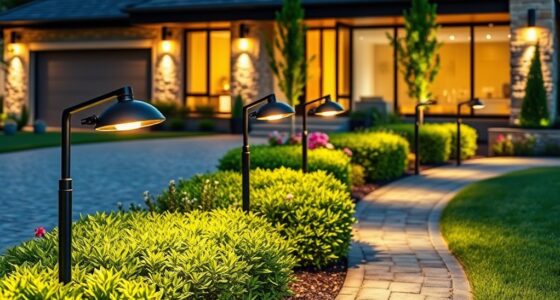
Yes, it’s safe to install smart lights outdoors if they’re rated for outdoor use. Make sure you check the IP (Ingress Protection) rating, which indicates water and dust resistance. Install them in sheltered locations to prevent direct exposure to rain or extreme weather. Follow the manufacturer’s instructions carefully, and use weatherproof fixtures. Doing so guarantees your outdoor smart lights operate safely and last longer, giving you reliable, beautiful lighting.
Wi-Fi range extender for smart lights
As an affiliate, we earn on qualifying purchases.
As an affiliate, we earn on qualifying purchases.
Conclusion
When your smart lights start acting up, think of them as a dance partner needing a quick tune-up. With a little patience and the right troubleshooting steps, you can bring your lights back into harmony. Don’t let glitches dim your mood—consider it a gentle nudge to master your smart home symphony. Soon, your lights will shine steady and bright, turning your space into a glowing masterpiece you control effortlessly.
As an affiliate, we earn on qualifying purchases.
smart light troubleshooting tools
As an affiliate, we earn on qualifying purchases.
As an affiliate, we earn on qualifying purchases.
Halloween Picks
halloween
As an affiliate, we earn on qualifying purchases.